AI Studios' Video Agent is a feature that works as an AI video agent for content creation: you tell it in a chat what you want, and it writes the script, builds the scenes, adds the voice, and keeps refining the result as you keep talking. It is not the enterprise AI Video Agent, a real-time conversational avatar that answers customers on a website or app.
TL;DR: What can Video Agent do?
Video Agent turns a chat into finished content. Describe a video in one line, paste a link, or attach a file, and the agent plans a scene outline, generates a preview with images, captions, narration, and an optional avatar, and lets you export it or continue in the editor. The same chat also handles AI video clips, AI images, Seedance videos, AI dubbing, and YouTube video downloads. Narrated videos can be up to 3 minutes in 9:16 or up to 10 minutes in 16:9.
When should you use an AI video agent?
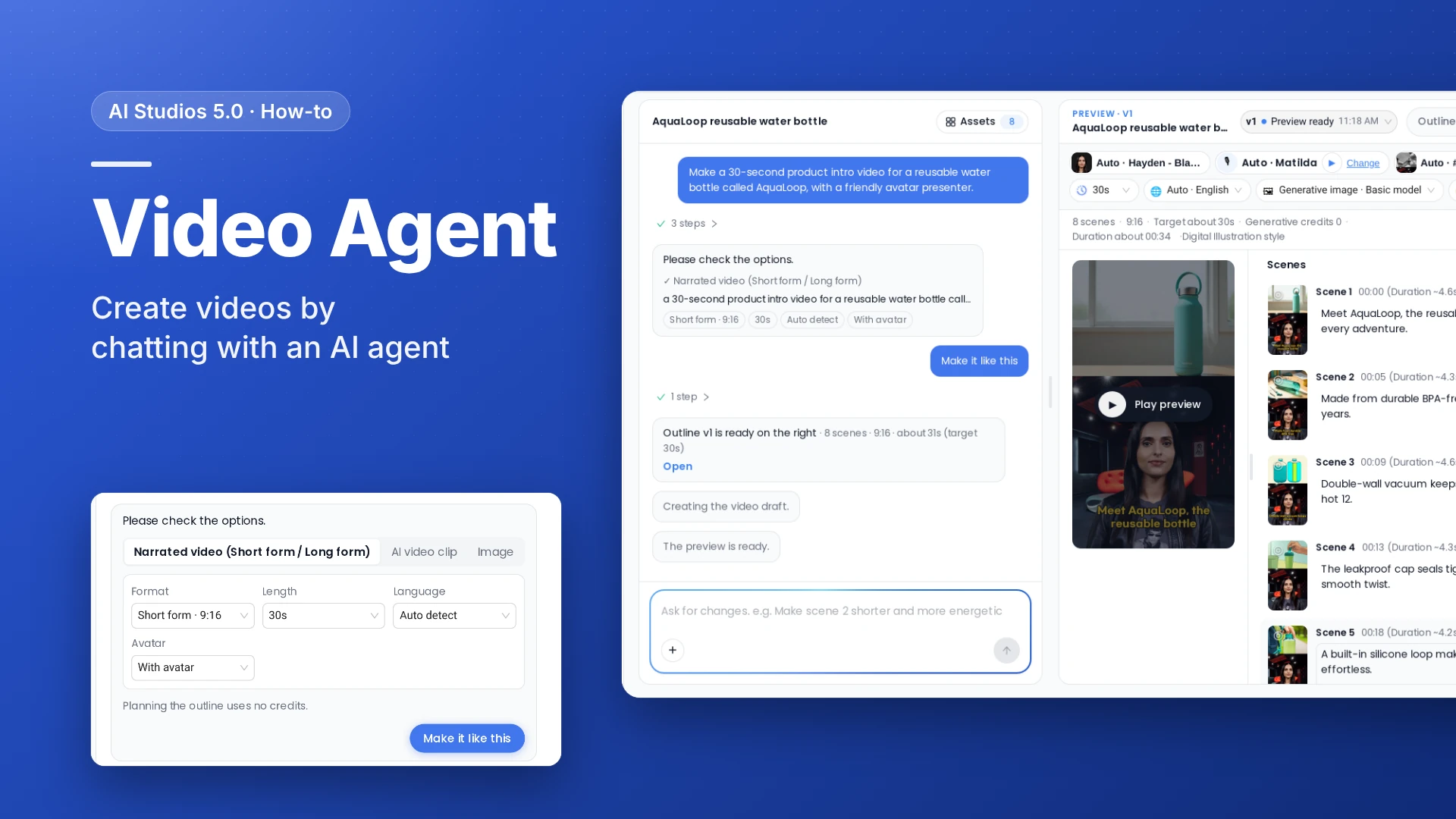
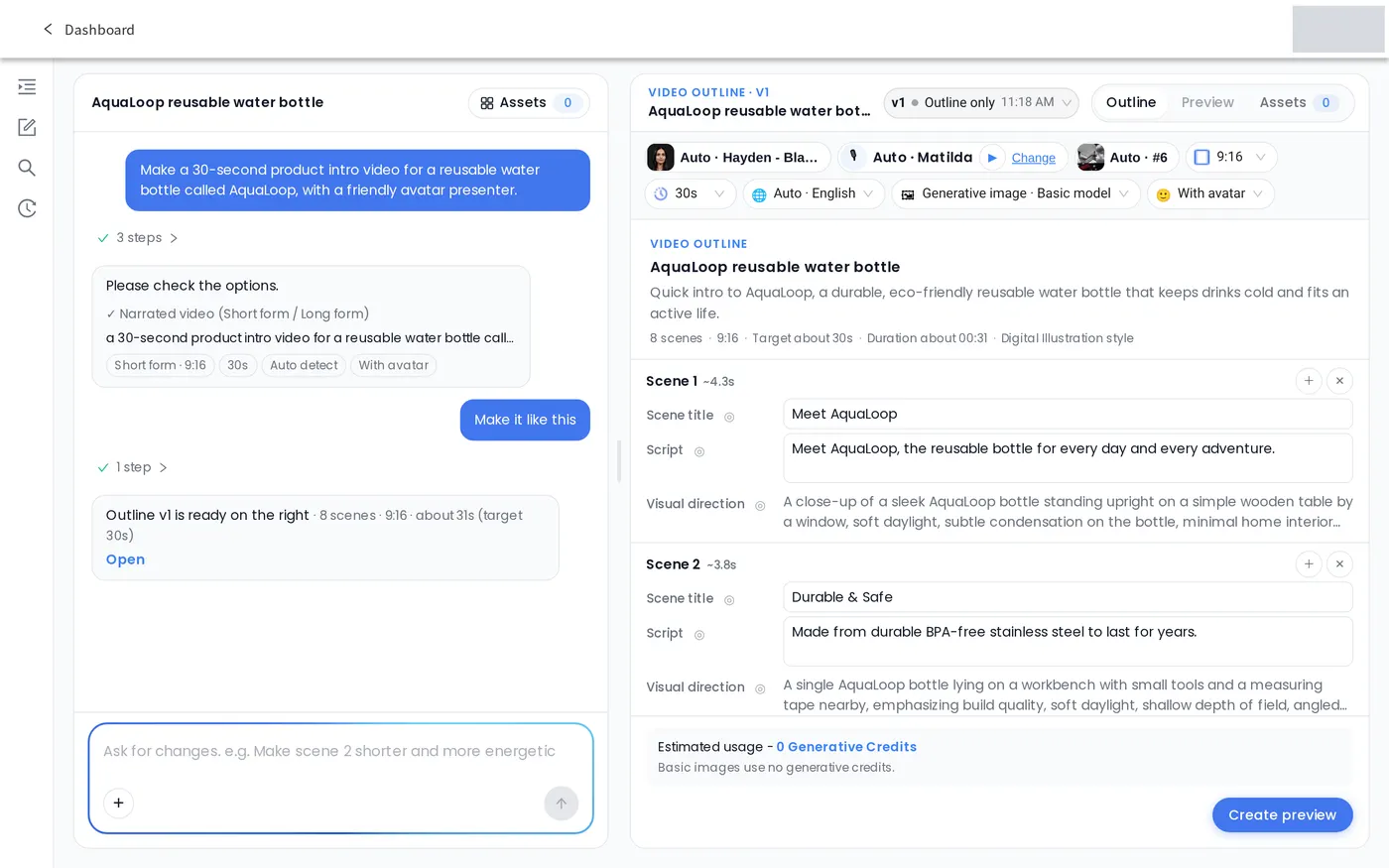
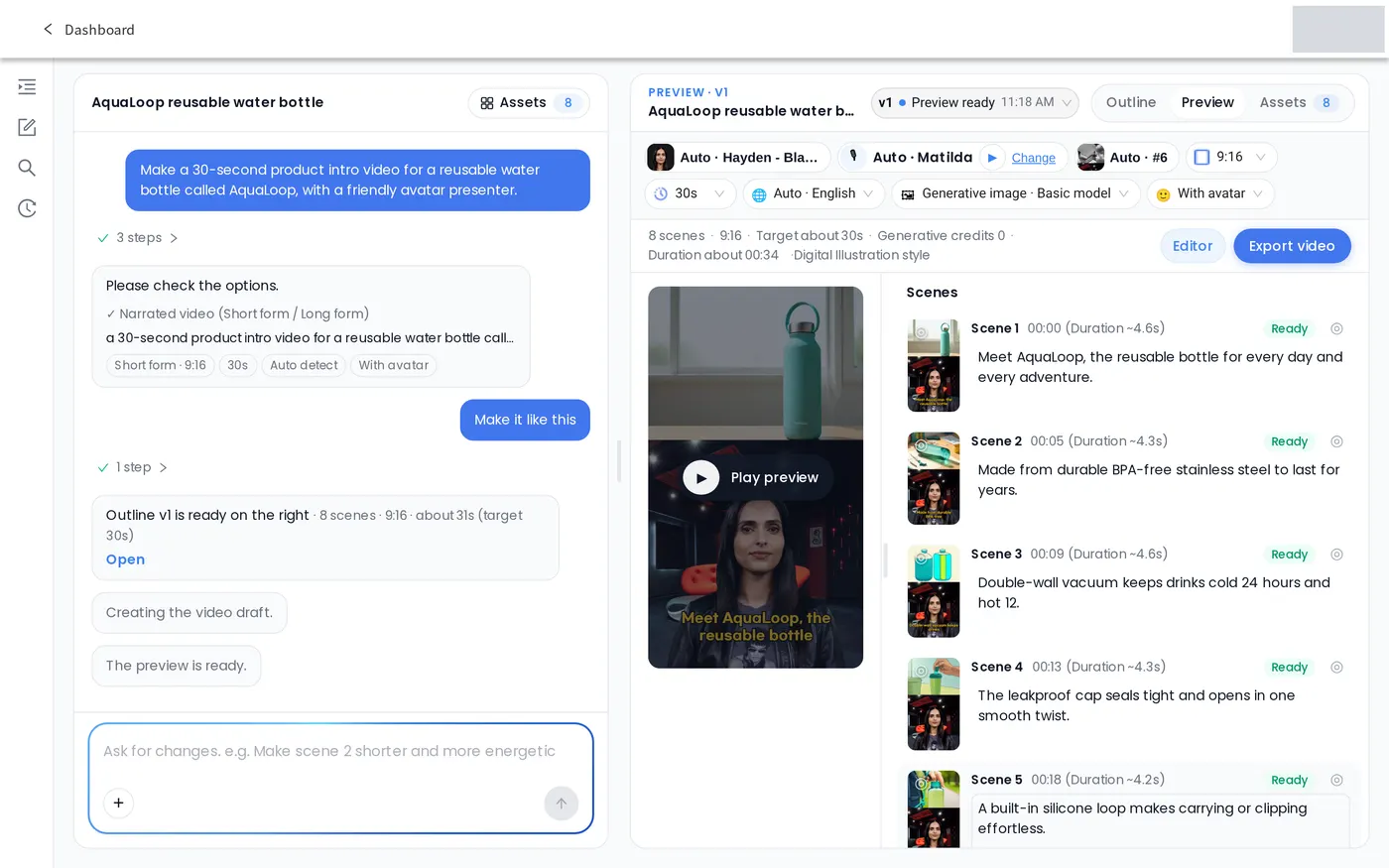
- Short product intros and promos. In our test, one prompt for a 30-second water bottle intro produced an 8-scene vertical (9:16) preview with an avatar presenter, narration, and captions.
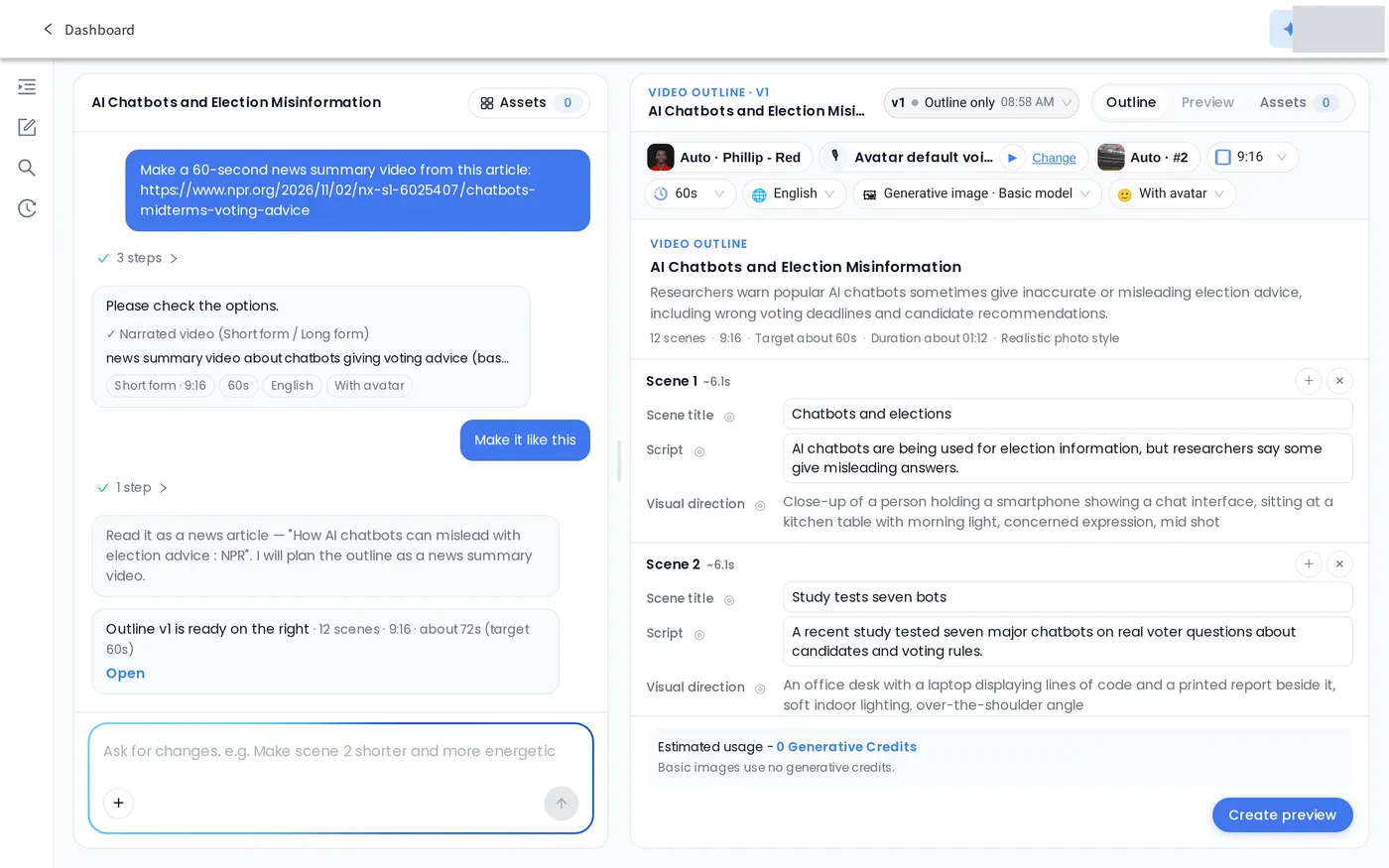
- Turning news or documents into a video. Paste a news article link or attach a document and ask for a summary, a lecture, or an announcement. In our test, an NPR article link became a 12-scene outline based on the article.
- Localizing or reusing a video. Ask in the same chat to dub a video into another language or to save a YouTube video as an MP4. In our test, each request opened the matching tool (AI Dubbing or YouTube Downloader) in the right panel with the link filled in.
How do you create a video with Video Agent?
The steps follow the English UI as tested on November 2–3, 2026; times are from one run.
Step 1: Open Video Agent
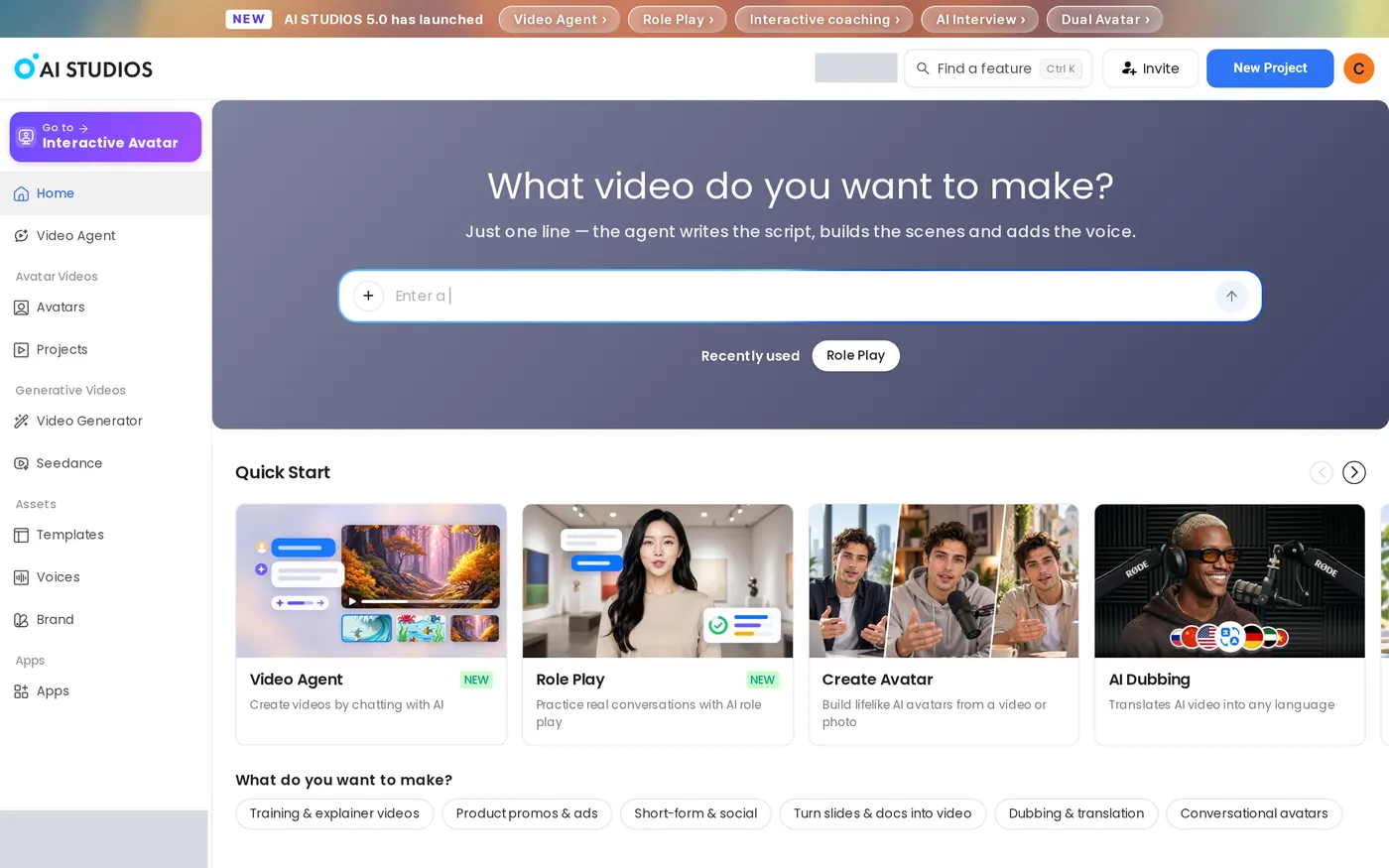
Click Video Agent in the left menu, click the Video Agent card under Quick Start, or type into the "What video do you want to make?" box on the dashboard.
Step 2: Tell the agent what you want
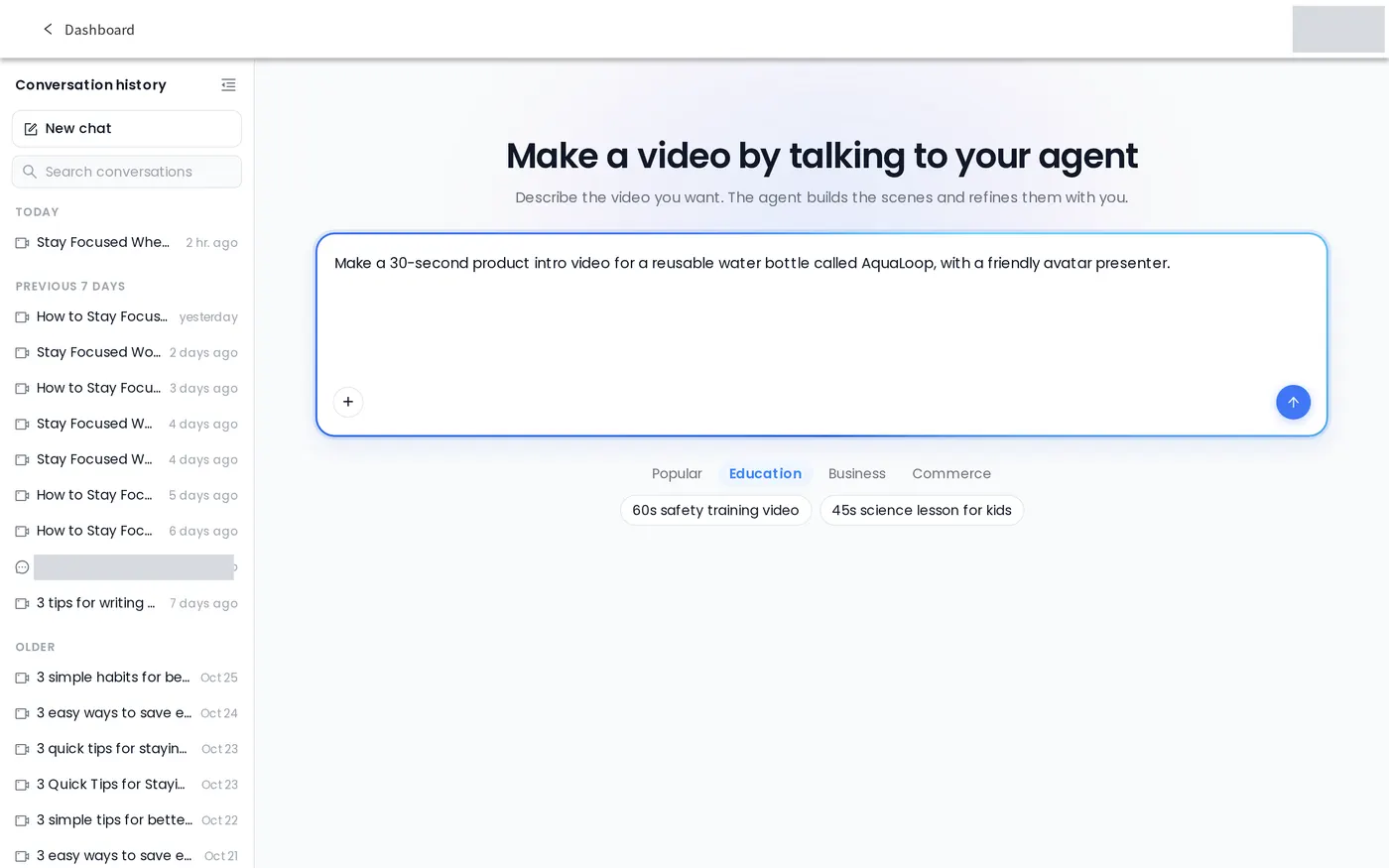
On "Make a video by talking to your agent," type your request in the box ("What should I make? Add files with +.") and press Send. There is no mode to pick first: the chat is the input. Include the subject, length, and purpose, for example: "Make a 30-second product intro video for a reusable water bottle called AquaLoop, with a friendly avatar presenter."
You can also:
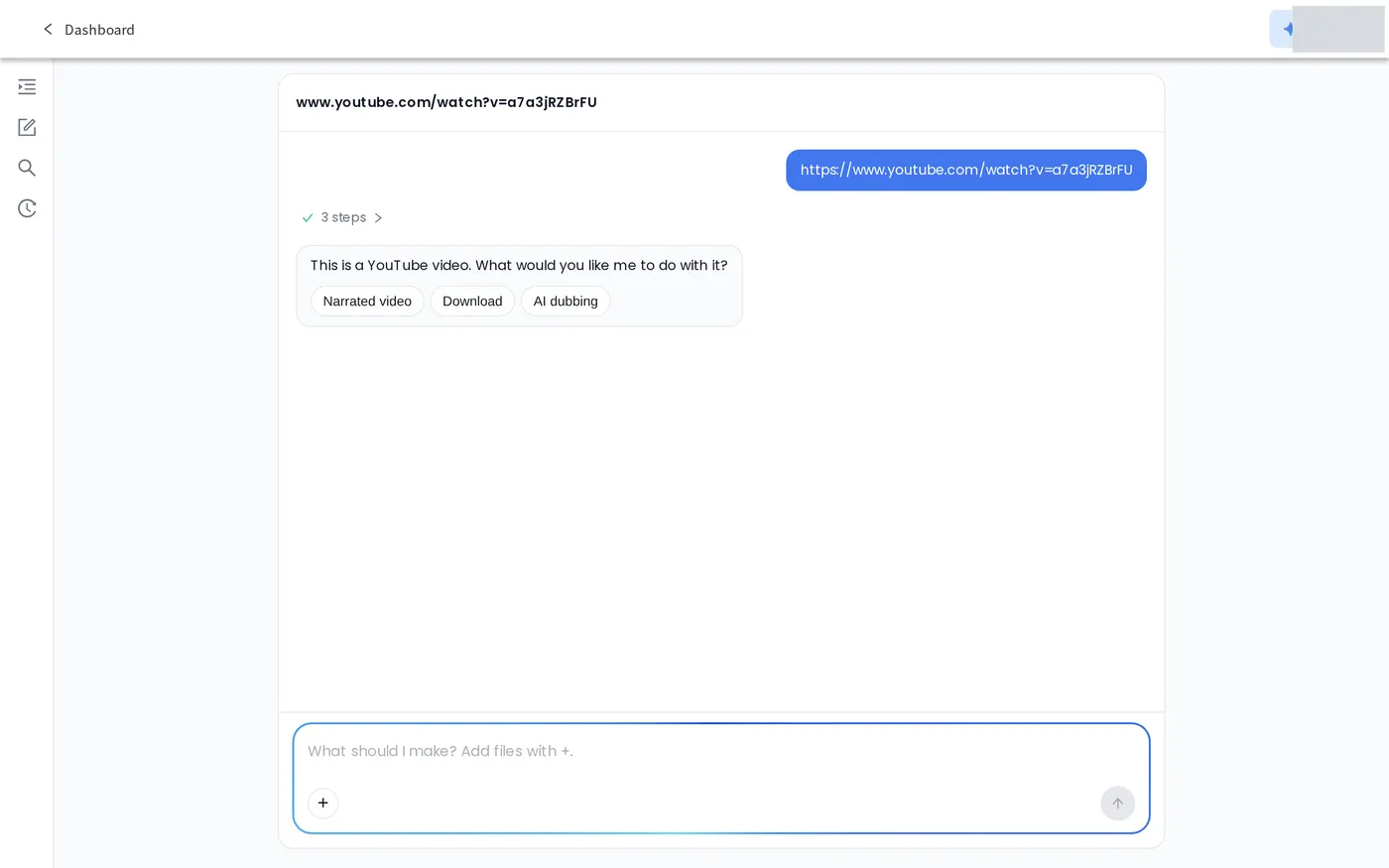
- Paste a link into the message. There is no separate URL field; put a news article, product page, or YouTube link in the chat and say what you want from it. The agent tells you how it read the link, for example "Read it as a news article." A YouTube link on its own makes the agent ask "What would you like me to do with it?" and offer Narrated video, Download, and AI dubbing.
- Attach files with +: documents (PDF, PPT, Word, Excel, TXT, MD, CSV), images (JPG, PNG, WEBP), or videos (MP4, MOV, WEBM, M4V).
- Start from an example prompt under the Popular, Education, Business, and Commerce tabs.
Step 3: Check the options the agent proposes
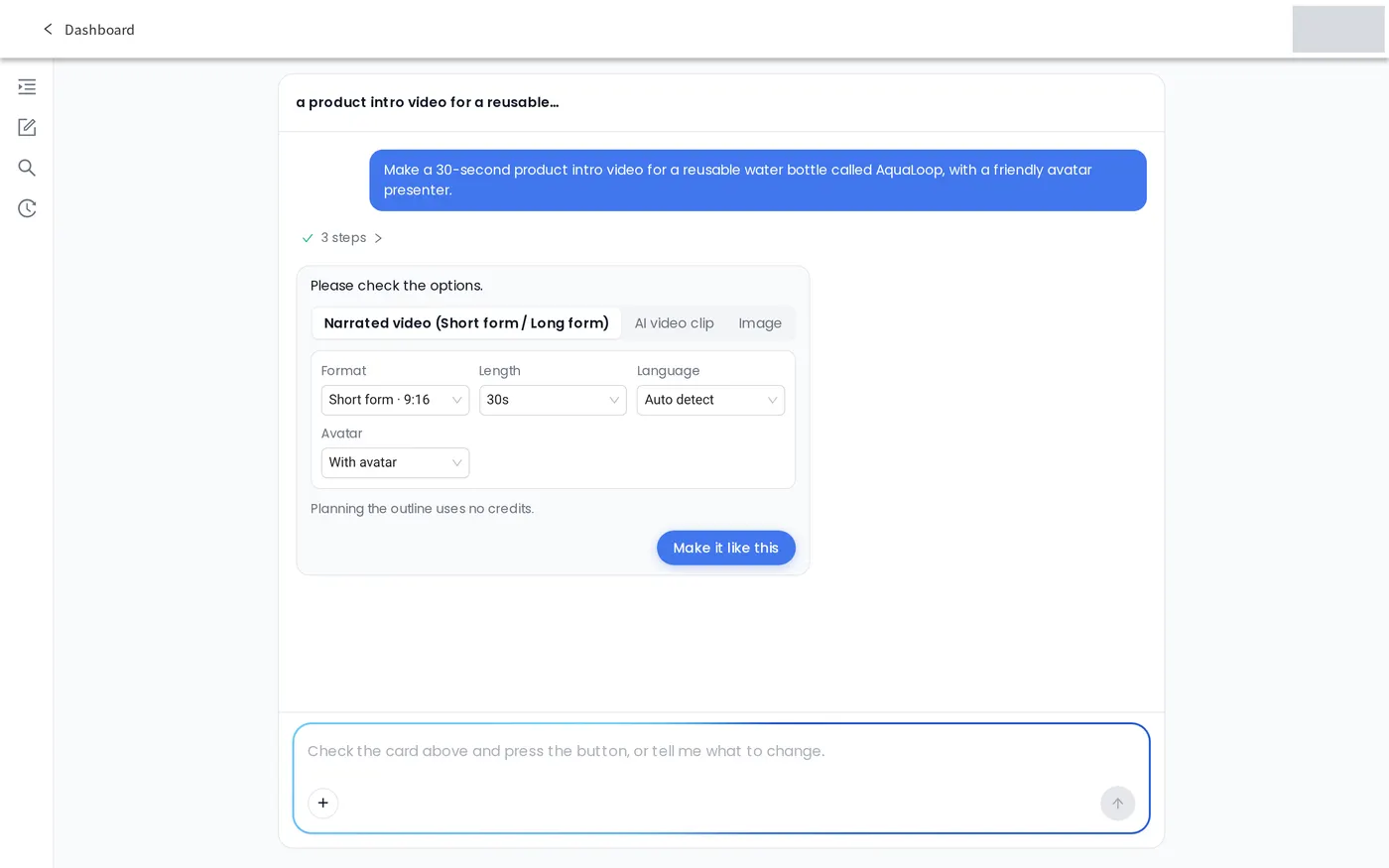
The agent replies with "Please check the options" and an options card that reflects your request. In our test, the card appeared about one minute after sending. For a narrated video, the card shows:
- Format: Short form · 9:16 or Long form · 16:9
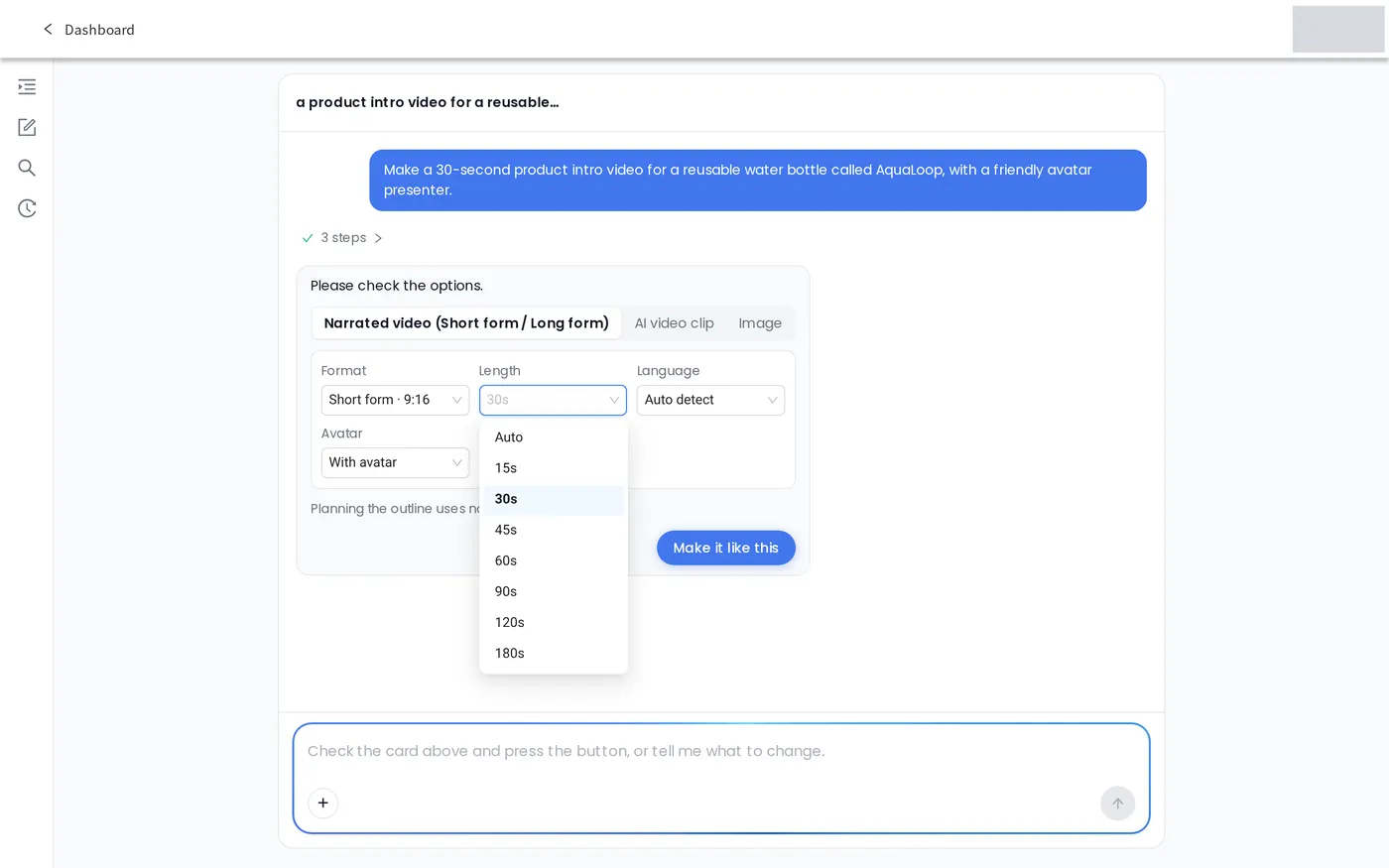
- Length: Auto, or a fixed length (15s up to 180s for 9:16, and up to 600s for 16:9 in our test)
- Language: Auto detect or a specific language
- Avatar: With avatar or No avatar (our prompt asked for a presenter, so With avatar was preset).
The card also offers AI video clip and Image as other outputs, and asking for one in the chat ("Make a 5-second AI video clip of a calm ocean at sunrise") opens the card on that output directly. It notes "Planning the outline uses no credits."
Step 4: Confirm with Make it like this
Press Make it like this, or type a change in the chat first. In our test, the outline was ready about 15 seconds later: "Outline v1 is ready on the right · 8 scenes · 9:16 · about 31s (target 30s)."
Step 5: Edit the outline by chatting or directly
The outline opens in the right panel (VIDEO OUTLINE · V1) with Outline, Preview, and Assets tabs. Each scene has an editable Scene title, Script, and Visual direction, and settings chips change the avatar, voice, layout, aspect ratio, length, language, and image type. You can also ask for changes in the chat, such as "Make scene 2 shorter and more energetic." The bottom of the outline shows the estimated usage and notes that basic images use no generative credits.
Step 6: Create the preview
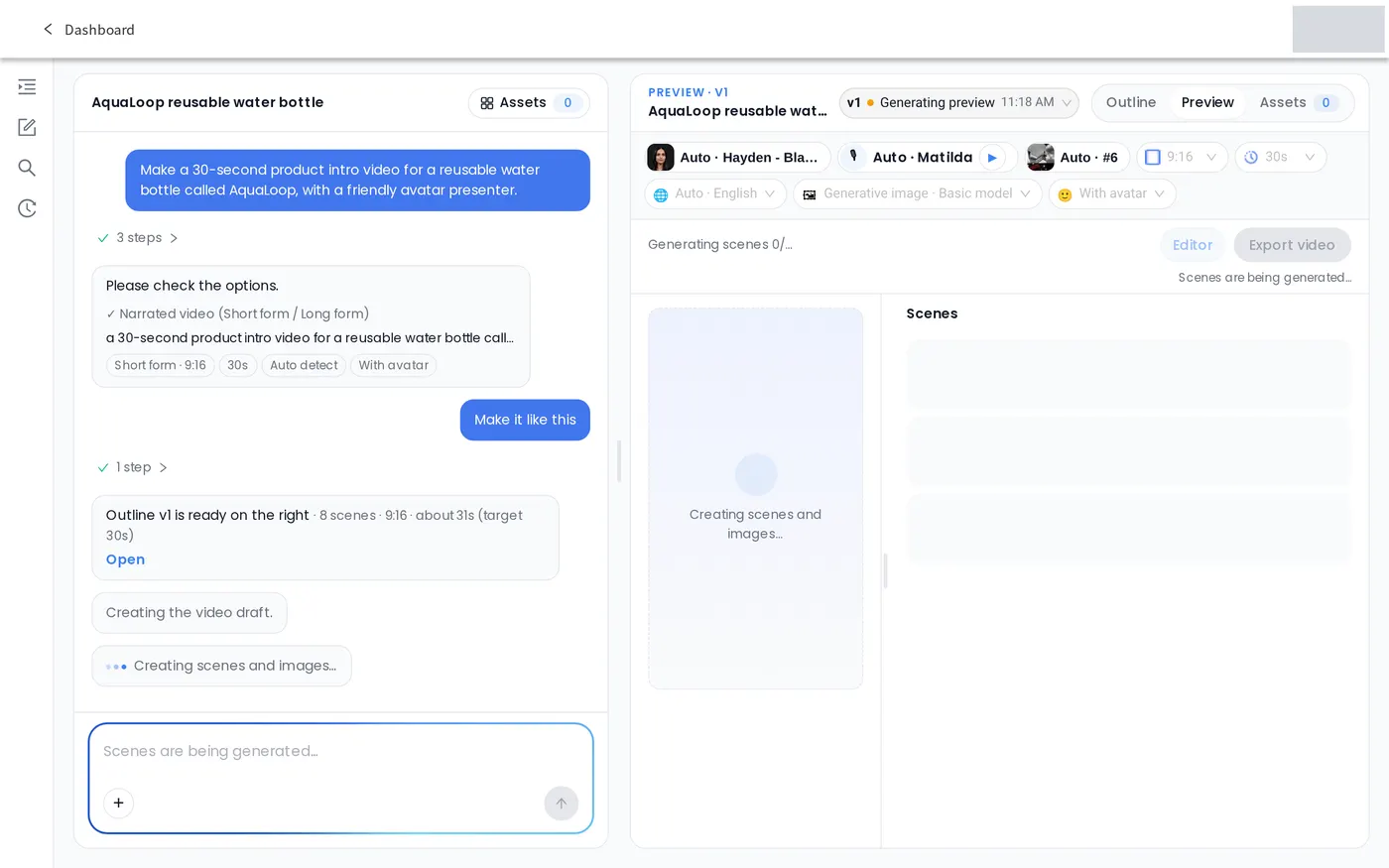
Press Create preview and keep the page open. In our test, "The preview is ready." appeared after about 70 seconds for 8 scenes (about 34 seconds long). Press Play preview to watch it.
Step 7: Export the video or open it in the editor
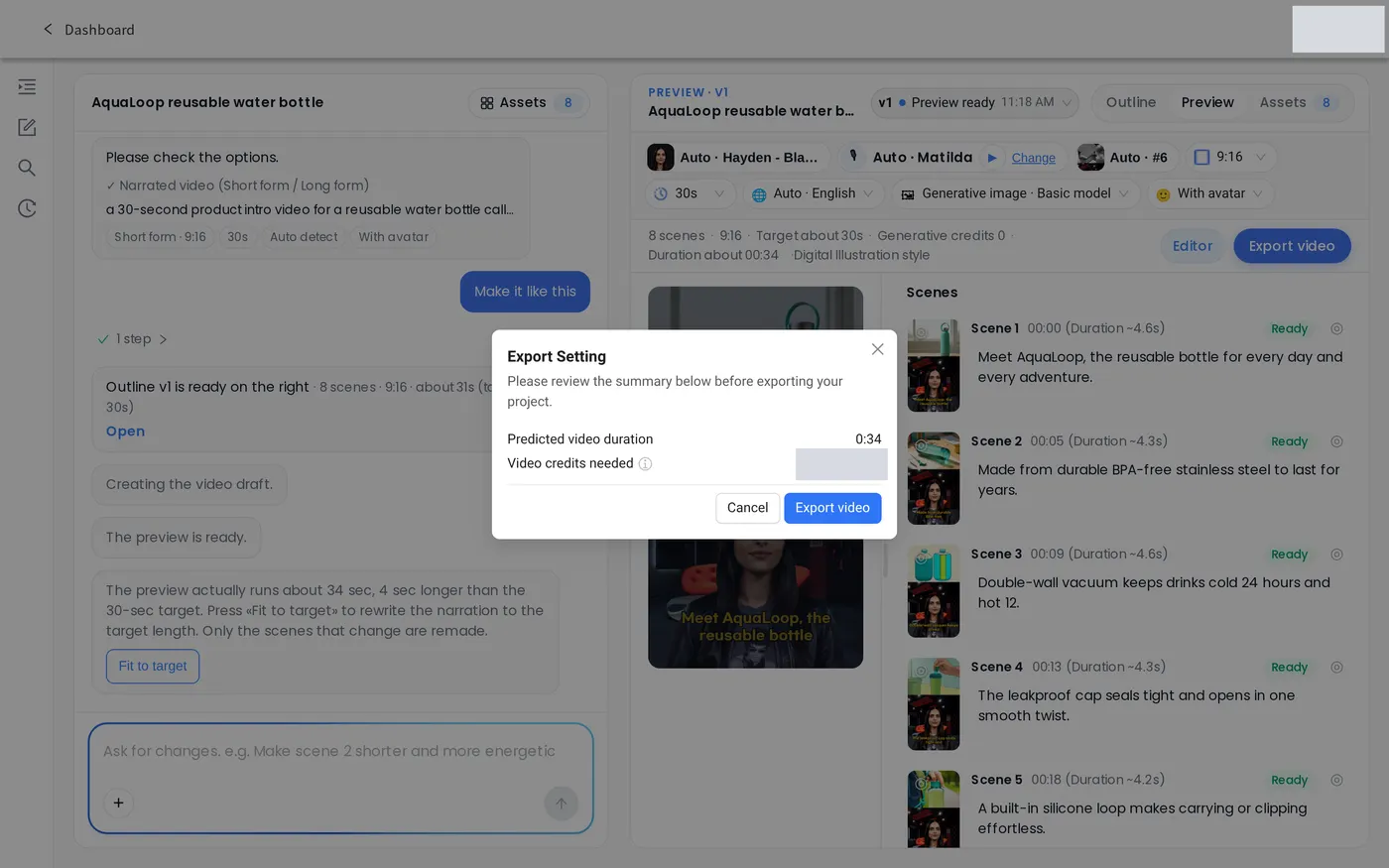
Press Export video to open "Export Setting," which shows the Predicted video duration and the Video credits needed, then confirm with Export video. To keep editing, press Editor; the agent makes a copy for the editor, and changes made there do not come back to the chat.
How can you get better results from an AI video agent?
- Say everything in the first message. Subject, length, format, and whether you want a presenter all shape the options card. If you want an avatar on screen, say so ("with a friendly avatar presenter").
- Say what the link is for. When you paste a link, add one line on the goal, such as "a 60-second news summary," and name the selling points you want for a product page, so the agent builds the right kind of scenes. Check the first scenes against the source before you create the preview.
- Use Fit to target when the length drifts. In our test, the preview ran about 34 seconds against a 30-second target. The agent offered Fit to target, which rewrites the narration to fit.
Video Agent FAQ
What is Video Agent in AI Studios?
AI Studios' Video Agent is a feature that creates content from a chat: you say what you want, confirm the options it proposes, and the agent writes the script, builds the scenes, and adds the voice.
Is Video Agent the same as the AI Video Agent for customer conversations?
No. Video Agent in the AI Studios app makes videos through a chat. The enterprise AI Video Agent is a separate product: a real-time conversational avatar that talks with customers on a website or app.
What can I make with Video Agent?
According to the feature page, you can ask for six kinds of work in the same chat: narrated videos with a script, scenes, voice, and an optional avatar; short AI video clips from a prompt or reference image; AI images; Seedance videos that use your images, videos, and audio as references; AI dubbing of an uploaded or YouTube video; and YouTube video downloads as MP4. You don't switch modes; you describe the result you want.
Can I make a video from a URL?
Yes. There is no separate URL field: paste the link into the chat with a line on what you want. In our test, a news article link became an outline based on the article, and a YouTube link alone made the agent ask what to do with it.
Does Video Agent use credits?
Planning the outline uses no credits, and in our test a preview with basic images used no generative credits. Before an export or a dub, a confirmation card shows the estimated credits. Downloading a YouTube video used no credits in our test. The Free plan has monthly limits for Video Agent, and advanced models and generative video clips need a paid plan.
How long can a Video Agent video be?
Narrated videos can be up to 3 minutes in 9:16 or up to 10 minutes in 16:9. In our test, the Length menu offered up to 180 seconds for Short form and up to 600 seconds for Long form.
Try Video Agent
Turn your next idea, link, or document into a video with AI Video Agent. For a full reference, see Create a video with Video Agent, or go straight to app.aistudios.com/chat/video-agent. Related: Text to Video, Docs to Video, AI Dubbing, Pricing.