TL;DR: What is Interactive Coaching in AI Studios?
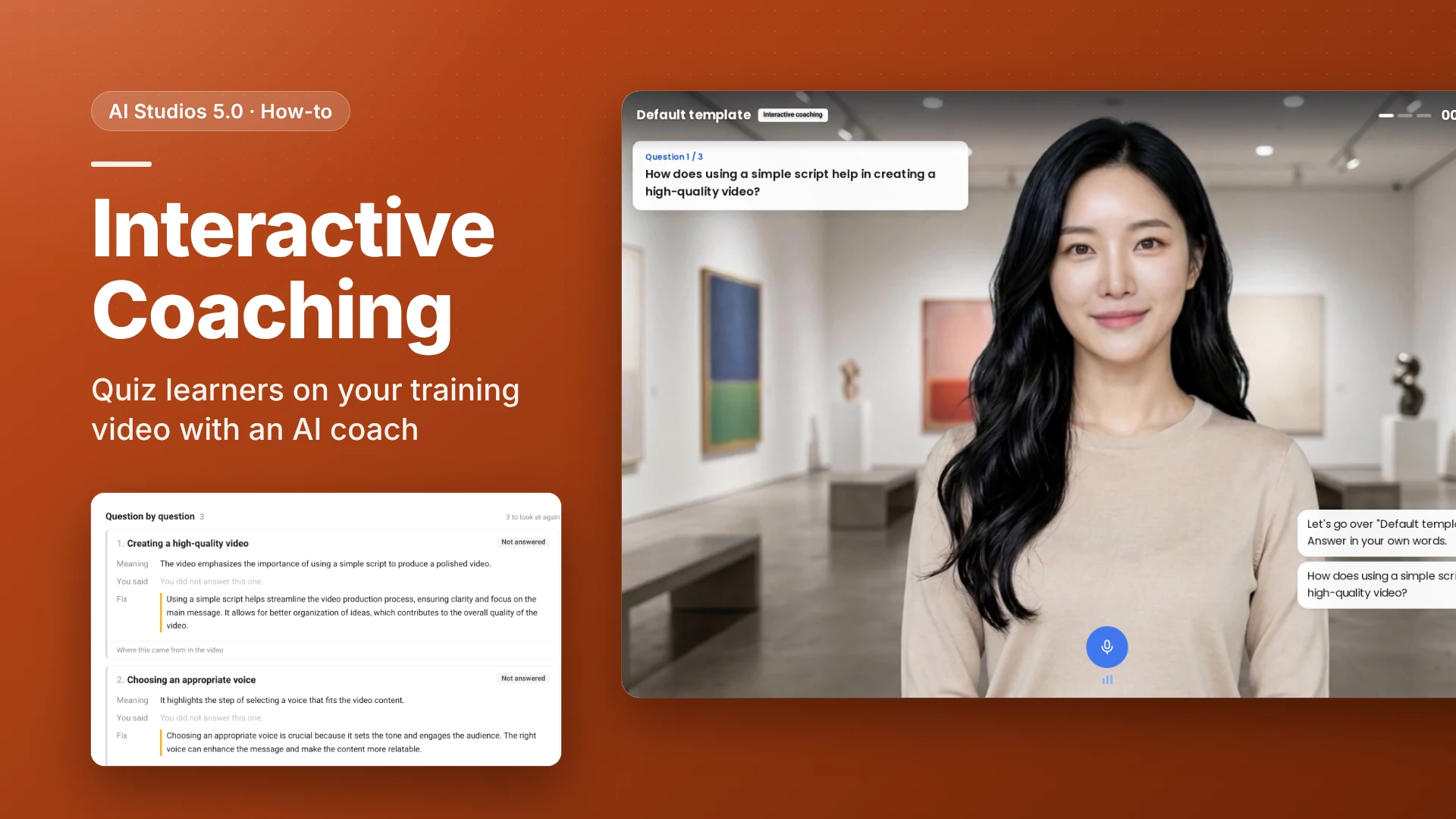
AI Studios' Interactive Coaching is a feature that turns a finished video into interactive video training: after watching, each learner talks with an AI avatar coach that asks questions about the video, and the session ends in a scored report. It is different from AI Roleplay, where learners practice a live conversation such as a sales call. Interactive Coaching checks whether learners understood a video they just watched, and you review every learner's score in one results list.
When should you use interactive video training?
Use it when "watched the video" is not proof that someone learned from it.
- Onboarding and compliance training. Turn on coaching for a mandatory video so each new hire answers questions in their own words instead of only pressing play.
- University and course lectures. Turn a recorded lecture into a study check. The sample "Opportunity Cost and Sunk Cost" shows this use.
- Sales and support product training. Check that reps understood a product or policy video before they talk to customers. For practicing the customer call itself, use AI Roleplay instead.
How do you set up Interactive Coaching? (Step by step)
You turn coaching on for your account and your video, choose how the coach asks questions, share the video link, and then review each learner's session in a report.
Before you start:
- Use a desktop browser on a PC. Phones are not supported.
- You need a video made in AI Studios, such as a training video. You do not need to re-record or re-edit it.
- Coaching uses interactive credits from the video owner's account. Viewers are not charged. See pricing for interactive credit plans.
Part 1: Turn on coaching for your video (video owner)
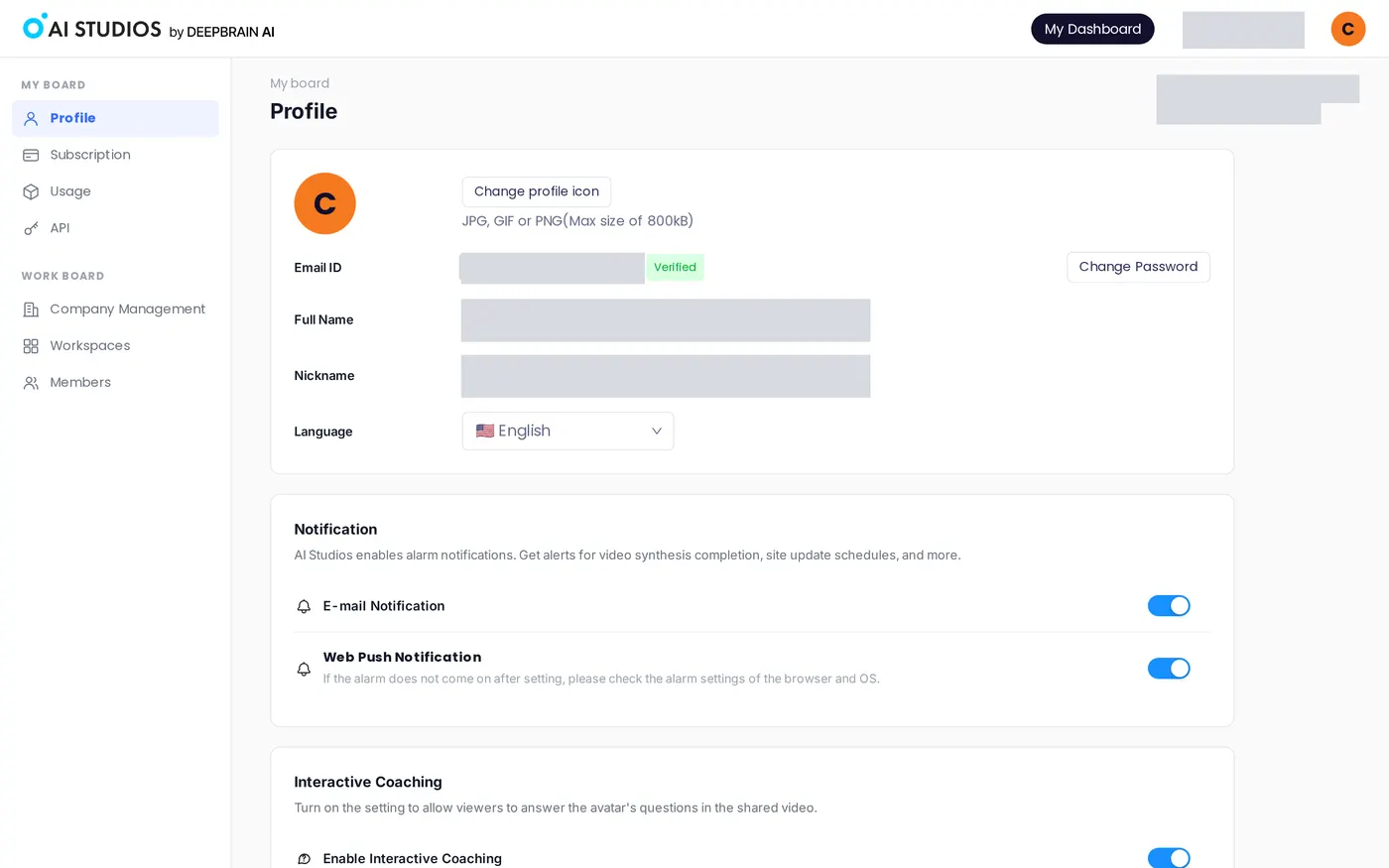
1. Check the account setting. Open your account Profile and find the Interactive Coaching section ("Turn on the setting to allow viewers to answer the avatar's questions in the shared video."). Make sure Enable Interactive Coaching is on. If it is off, viewers don't see the coaching button on any shared video.
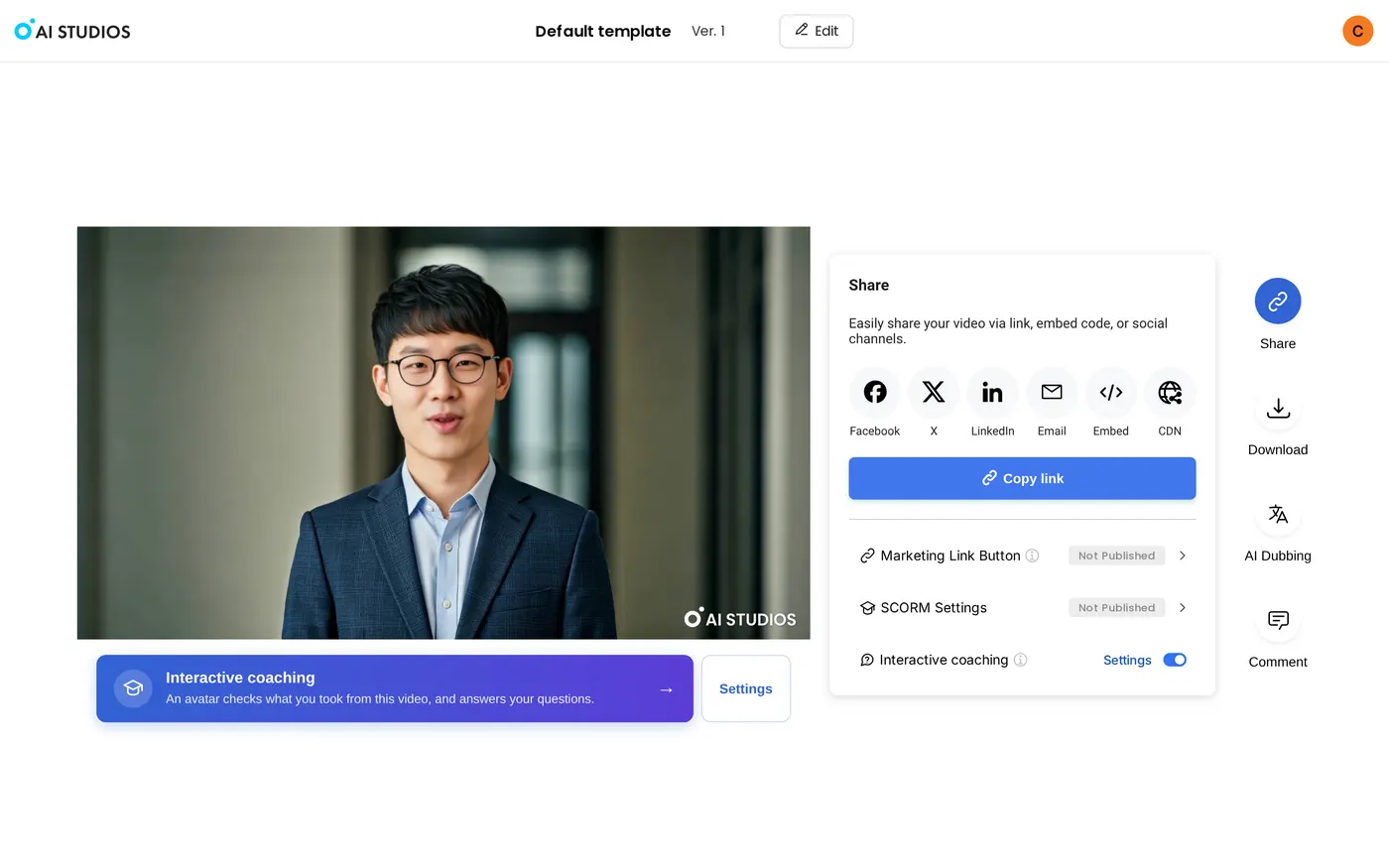
2. Open the video's share page. In the left sidebar, under Interactive Avatars, click Interactive coaching and hover over a card, or open your own video's share page. On the share page, the Share panel has an Interactive coaching toggle. In our test, it was already on for our own video. Its tooltip reads: "Shows an Interactive coaching button below this video. Viewers see it only while Interactive coaching is on in Account settings."
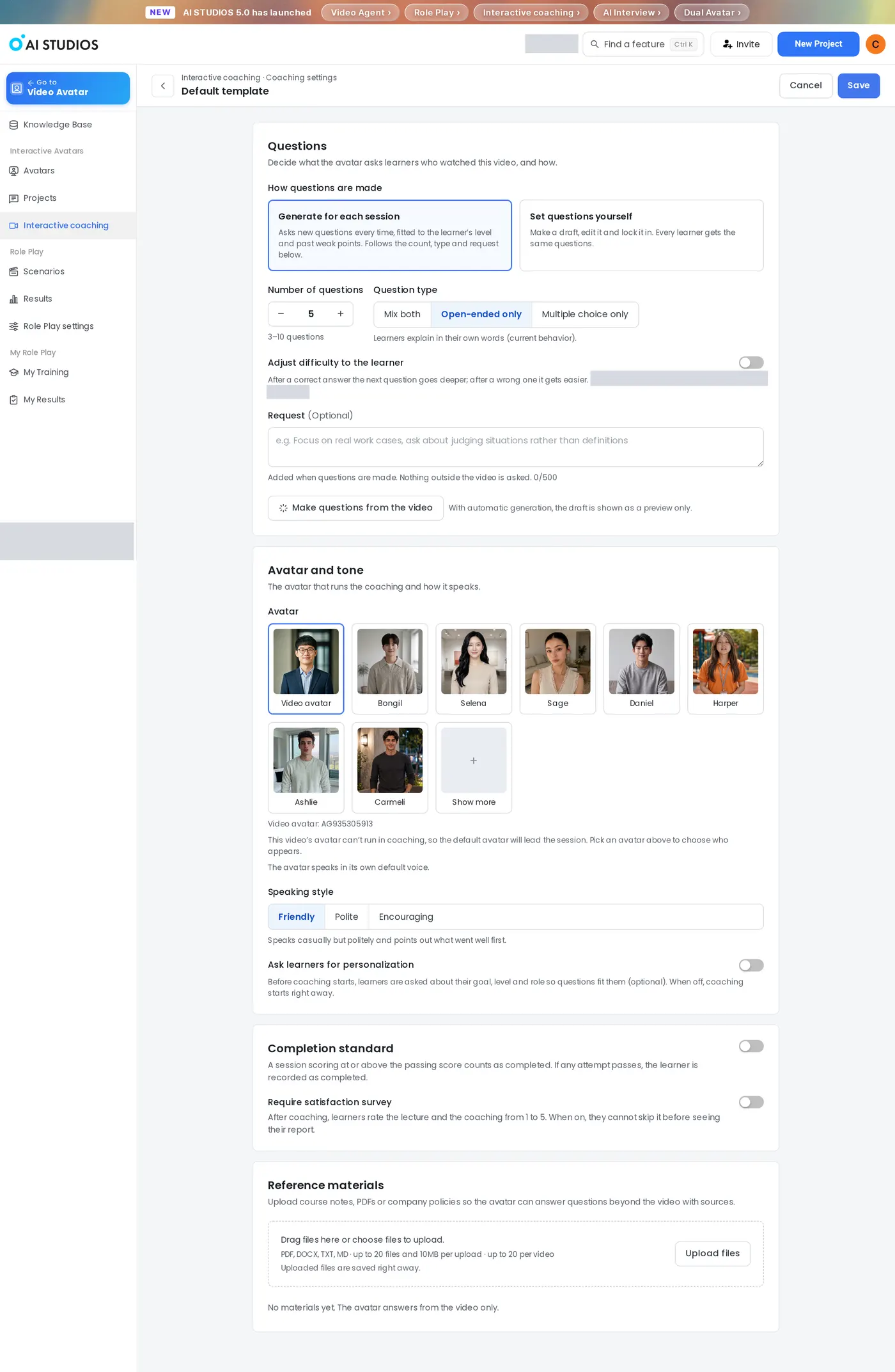
3. Adjust Coaching settings (optional). On your video's share page, click Settings next to the coaching banner under the video. The same button also sits next to the Interactive coaching toggle in the Share panel. Only the video owner sees these buttons. The Coaching settings page has these options:
- How questions are made: Generate for each session (the default) asks new questions every time, fitted to the learner's level and past weak points. Set questions yourself lets you make a draft, edit it, and lock it in, so every learner gets the same questions.
- Number of questions: 5 by default, from 3 to 10.
- Question type: Mix both, Open-ended only (the default), or Multiple choice only.
- Adjust difficulty to the learner: When on, the next question goes deeper after a correct answer and gets easier after a wrong one.
- Request (Optional): Add a note for the questions, such as "Focus on real work cases." Nothing outside the video is asked.
- Make questions from the video: Preview a draft of the questions before learners see them.
- Avatar and tone: Pick the Avatar that runs the coaching and a Speaking style: Friendly (the default), Polite, or Encouraging.
- Ask learners for personalization, Completion standard, and Require satisfaction survey: These switches ask learners about their goal, level, and role before coaching, count a session at or above a passing score as completed, and ask for a 1-to-5 rating after coaching. All three are off by default.
- Reference materials: Upload course notes, PDFs, or company policies (PDF, DOCX, TXT, or MD) so the avatar can answer questions beyond the video with sources.
Click Save to apply your changes, or Cancel to leave without saving.
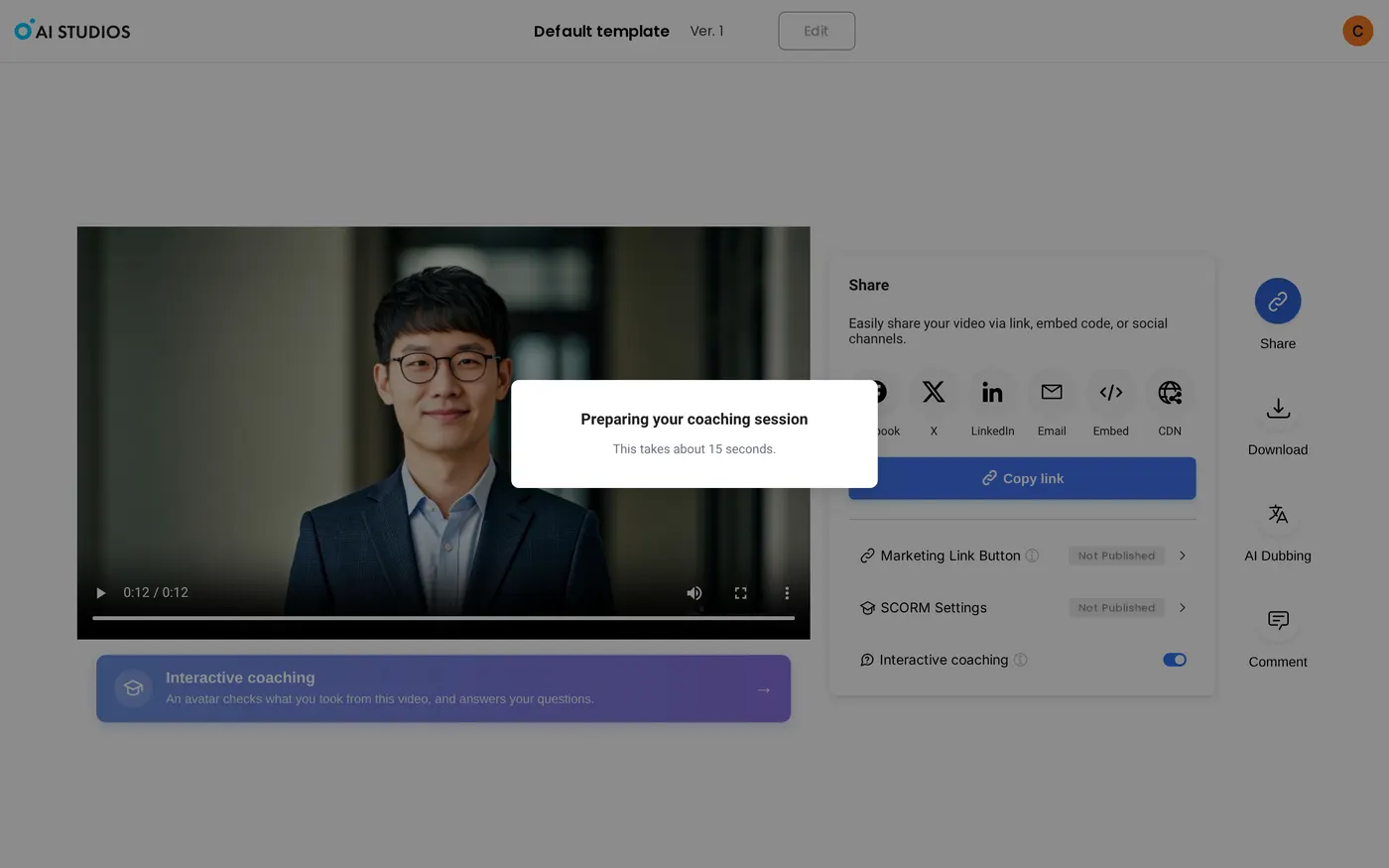
4. Share the video. Use Copy link, Embed, or email in the Share panel. Viewers see a banner under the video: "Interactive coaching — An avatar checks what you took from this video, and answers your questions."
Part 2: What a coaching session looks like
5. Start a session. A learner clicks the banner under the video. You can try the same session yourself from the Interactive coaching page by clicking Start Coaching Session on a card. A dialog reads "Preparing your coaching session — This takes about 15 seconds," and the session starts right after. The coach prepares questions from the video during this step.
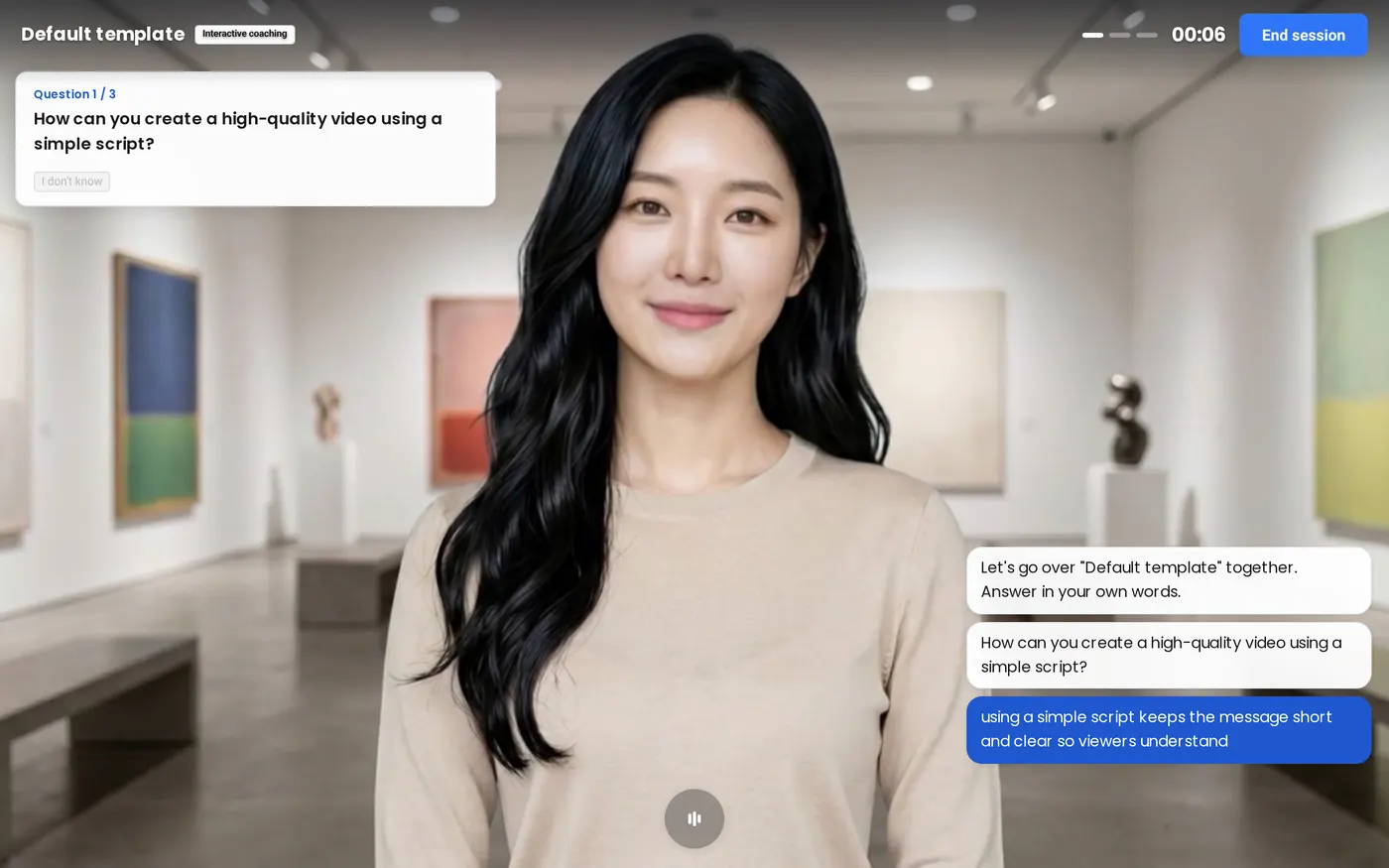
6. Answer the coach's questions. The coach greets the learner (for example, "Let's go over "Default template" together. Answer in your own words.") and shows one question at a time with a question counter. The learner answers out loud with the microphone and can also ask their own questions. A timer and an End session button sit at the top.
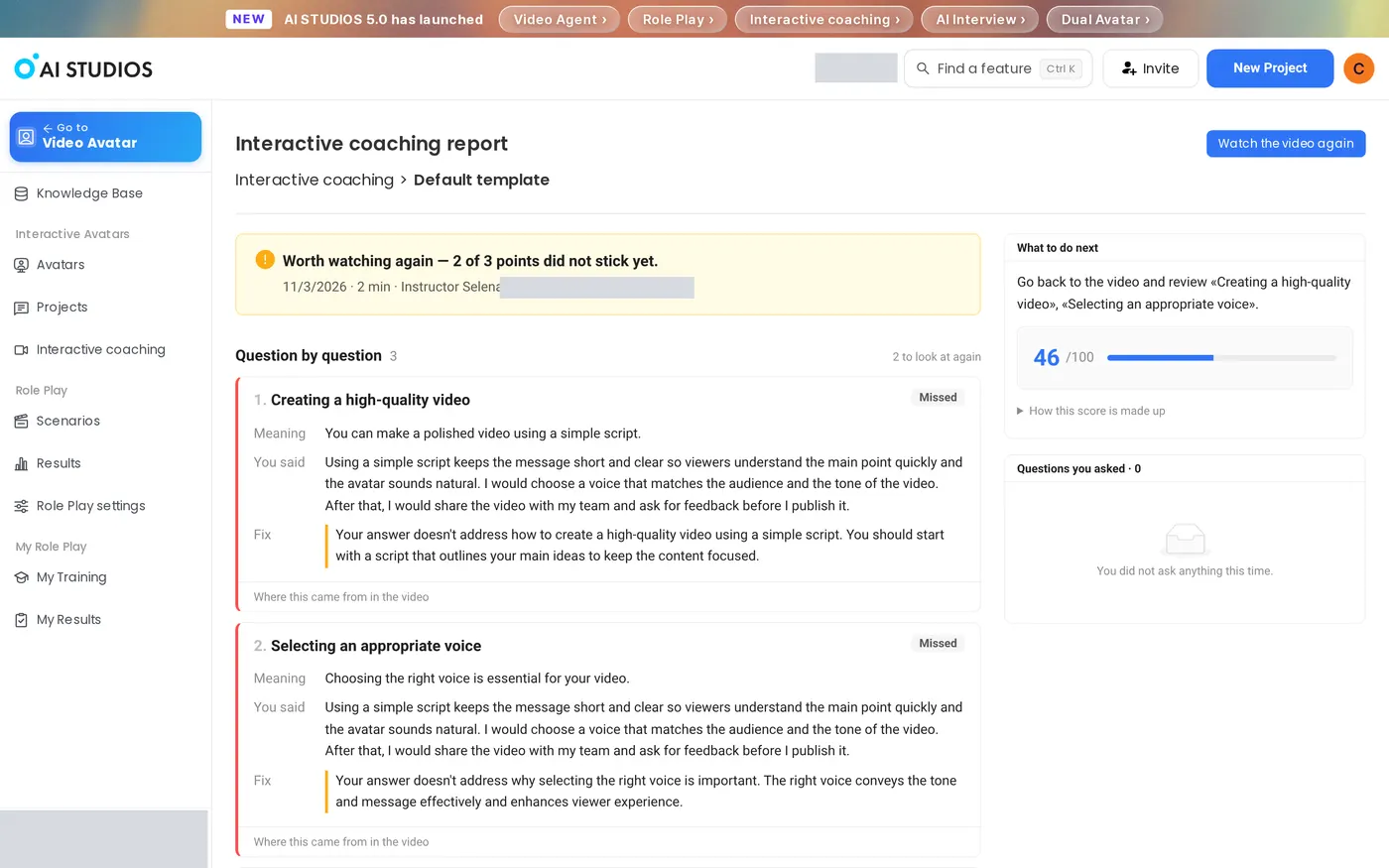
7. End the session and read the report. Clicking End session opens the Interactive coaching report. It shows a one-line summary, Question by question feedback (Meaning, You said, Fix, and Where this came from in the video), What to do next, a score out of 100 with "How this score is made up," and Questions you asked. Watch the video again sends the learner back to the video.
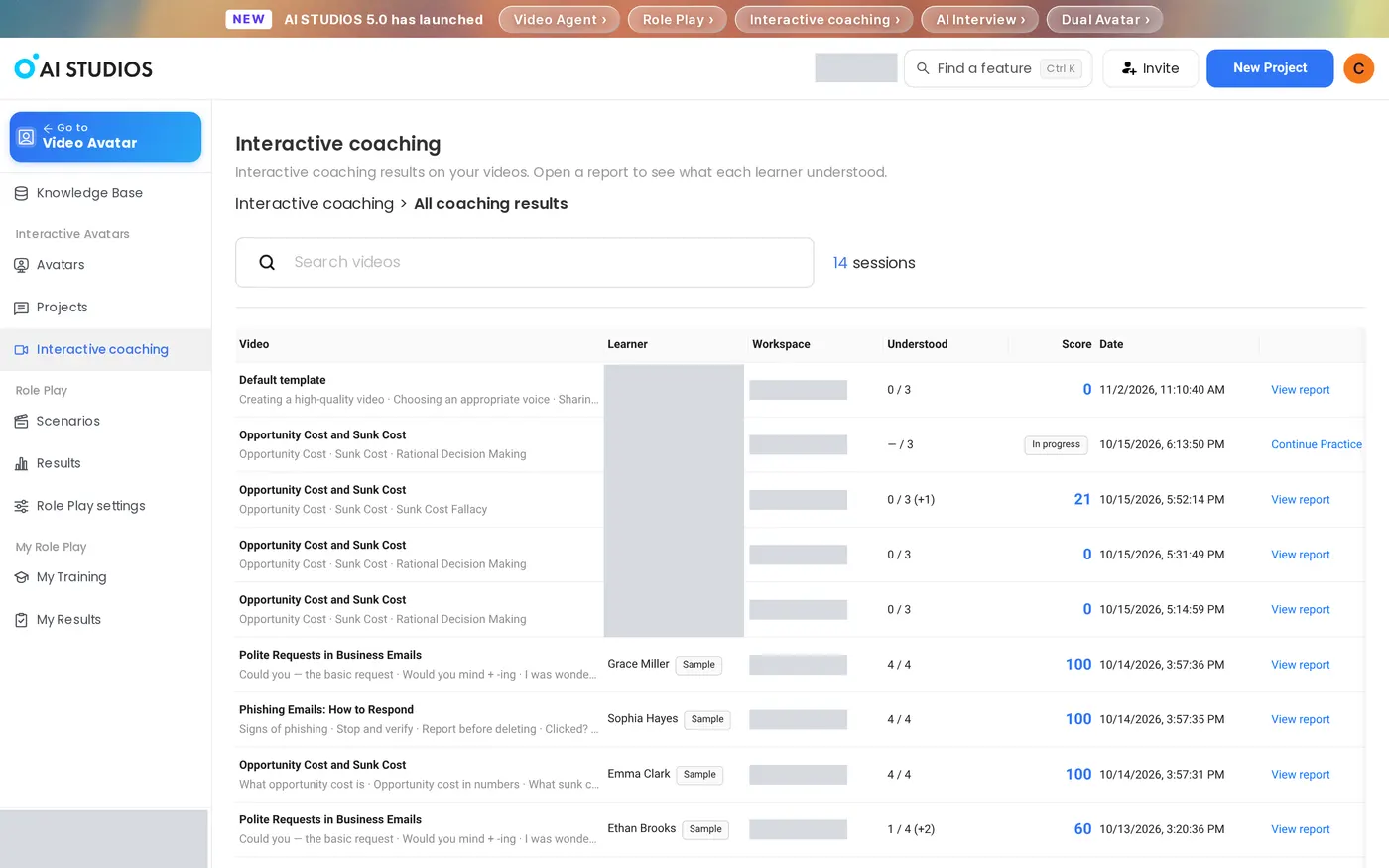
8. Review all learners. On the Interactive coaching page, click All coaching results to see each session's Video, Learner, Workspace, Understood, Score, and Date. Click View report for details, or Continue Practice for a session still in progress. In our test, a new session appeared in the list as soon as it ended.
How can you get better results from Interactive Coaching?
The video itself and how you follow up on reports shape most of the experience.
- Try a sample first. The three sample lessons (Opportunity Cost and Sunk Cost, Phishing Emails: How to Respond, and Polite Requests in Business Emails) show a full session and report before you use your own video.
- Lock the questions for a formal check. Choose Set questions yourself in Coaching settings when every learner must answer the same questions.
- Keep key points clear in the video. The coach's questions come from the video, so state each point you want learners to remember plainly.
- Check both switches when the banner is missing. The account-level Enable Interactive Coaching setting and the video's Interactive coaching toggle both need to be on.
- Use "Where this came from in the video." Point learners who missed a question to that part of the video, then have them start a new session.
- Watch the Understood column. In All coaching results, a low Understood count across many learners can mean the video needs a clearer explanation, not that the learners did poorly.
- Group coached videos into a course. Use the AI Course Builder to organize lessons into modules. For more detail, see the Interactive Coaching help article.
Interactive Coaching FAQ
What is the difference between Interactive Coaching and AI Roleplay?
Interactive Coaching checks what a learner understood from a specific video by asking questions about it. AI Roleplay has learners practice a live conversation, such as a customer call, with an avatar.
Who pays for Interactive Coaching sessions?
Credits are deducted from the video owner's account, and viewers are not charged.
Can learners use Interactive Coaching on a phone?
No. Interactive Coaching runs in a desktop browser on a PC, and phones are not supported.
Do learners need an AI Studios account?
Anyone with the link can watch the video, but learners must sign up or log in to start a coaching session.
What happens when a learner gives a wrong answer?
The coach guides the learner to think it through rather than handing over the answer, and the report shows a Fix for each missed point along with the part of the video it came from.
Can I try Interactive Coaching before using my own videos?
Yes. The Interactive coaching page includes three sample lesson videos, so you can start a session and see a report before turning coaching on for your own video.
Start Interactive Coaching
Turn your next training video into interactive video training from its share page: Start Interactive Coaching.