TL;DR: What is AI Interview in AI Studios?
AI Studios' AI Interview is a feature that works as AI interview software for hiring teams: you paste a job posting, AI Studios generates the interview questions, and each candidate answers an AI avatar interviewer on camera through a shared link. When the interview ends, the hiring team gets a report with a score, an AI recommendation, the recording, and a transcript. It is a recruiting tool for HR teams, not a practice app for job seekers.
When should you use AI interview software?
AI Interview fits first-round screening where the same structured questions should go to every applicant and your team reviews the results afterward.
- High-volume roles. For customer support, sales, or operations openings with many applicants, post one interview link on the job board and let candidates take a one-way video interview when it suits them.
- Structured AI candidate screening. Every candidate gets questions generated from the same posting and tagged with the same competencies, so answers are easy to compare.
- Shortlisting specific candidates. When a recruiter already has a shortlist, a personal invitation link sends one interview to one person.
How do you set up AI interview software in AI Studios? (Step by step)
Setting up an AI interview takes eight steps: create a project, choose the AI Interview type, load a job posting, review questions, adjust settings, pick an avatar and save, share the link, and review results.
1. Open Projects and click Create Project. AI Interview is a project type inside Interactive Avatars > Projects, not a separate menu. You can also click the AI Interview › chip in the dashboard banner. A sample project, "Customer Support Manager Interview," shows what a finished setup looks like.
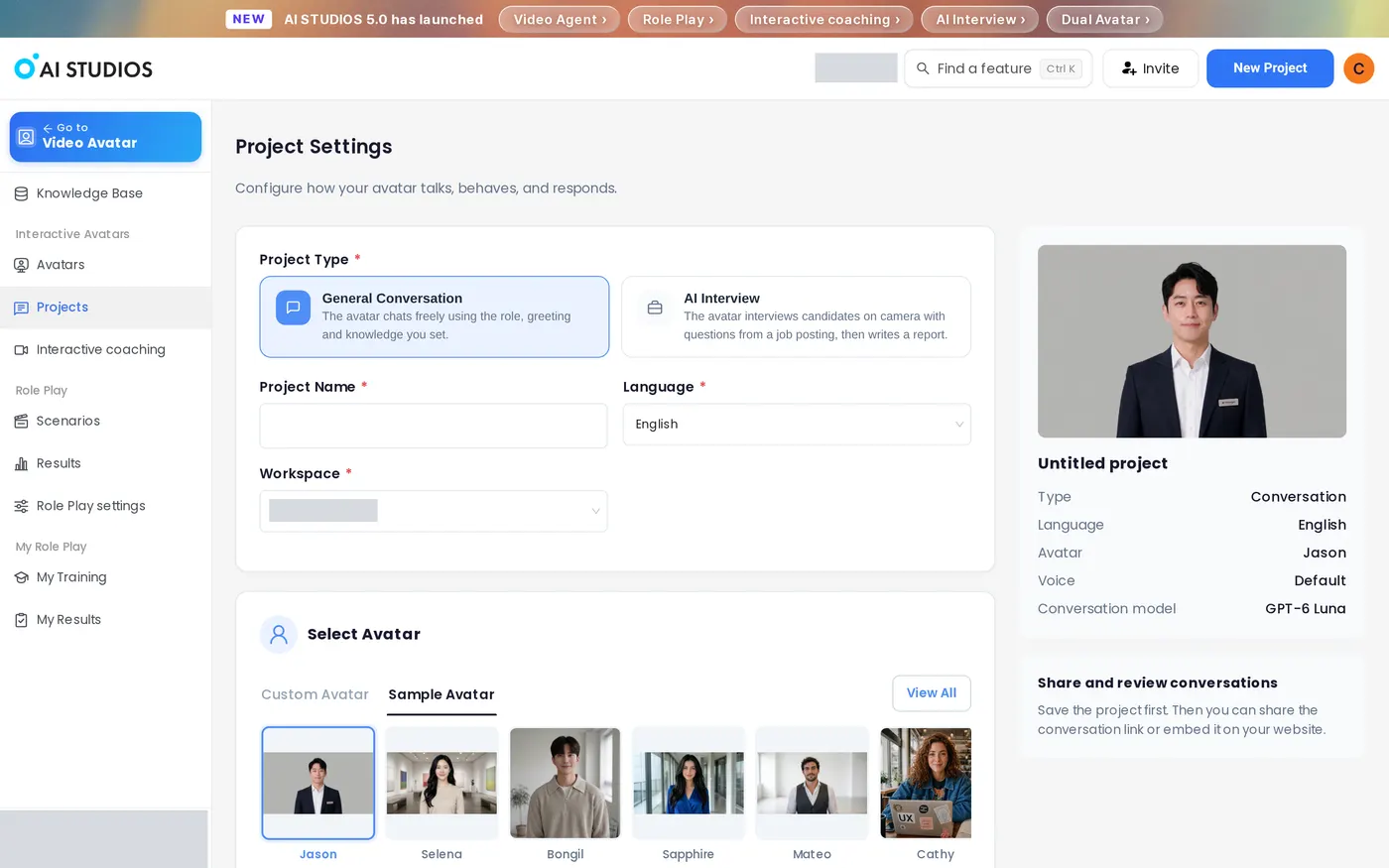
2. Choose the AI Interview type. Under Project Type, select AI Interview ("The avatar interviews candidates on camera with questions from a job posting, then writes a report."). Enter a Project Name, choose the Language (English by default; the menu also lists languages such as Chinese, Spanish, French, and Arabic), and pick the Workspace.
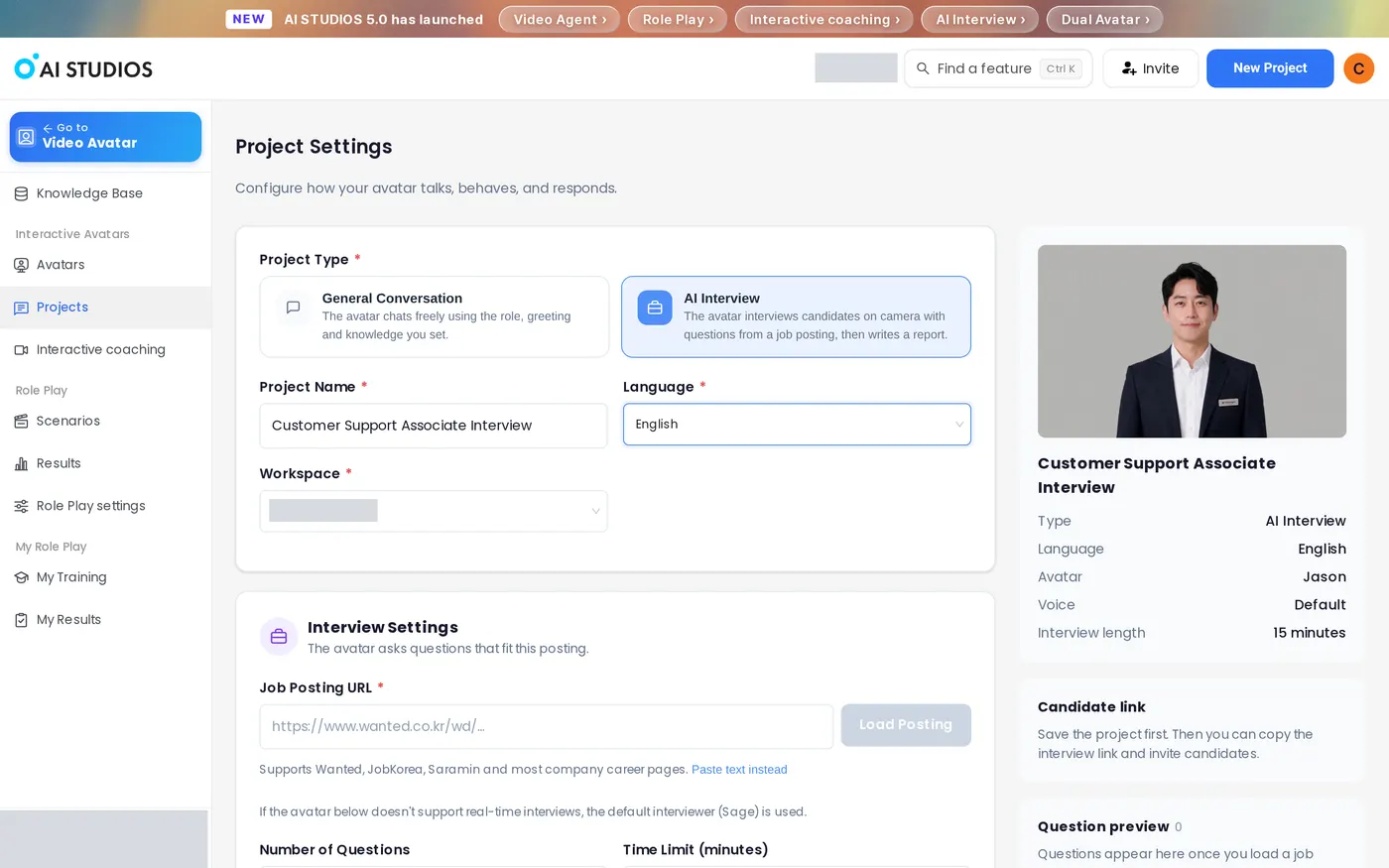
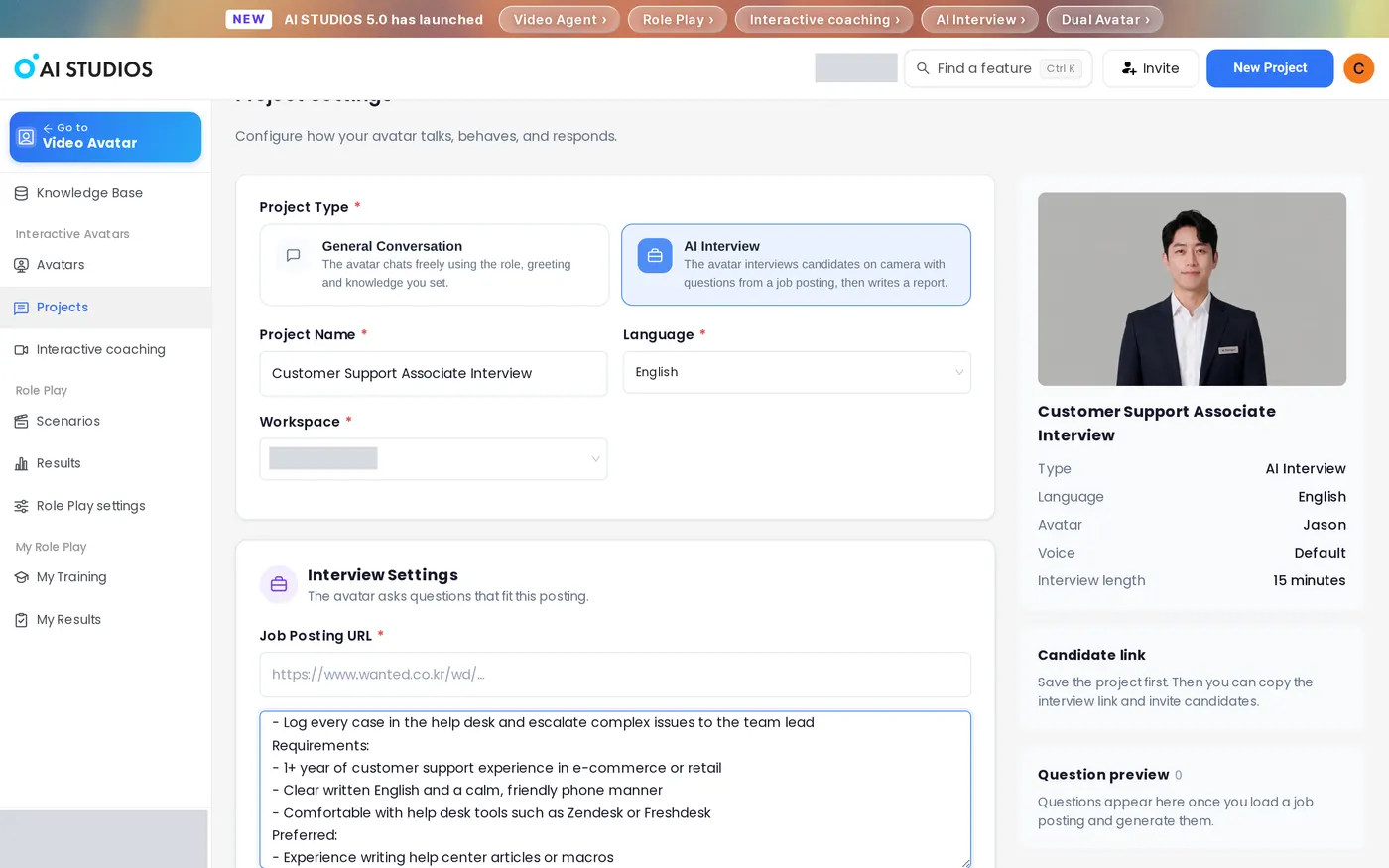
3. Load the job posting. Paste the posting link into Job Posting URL and click Load Posting. The field supports Wanted, JobKorea, Saramin, and most company career pages. If the posting isn't online, click Paste text instead, paste the responsibilities and requirements, and click Use This Text.
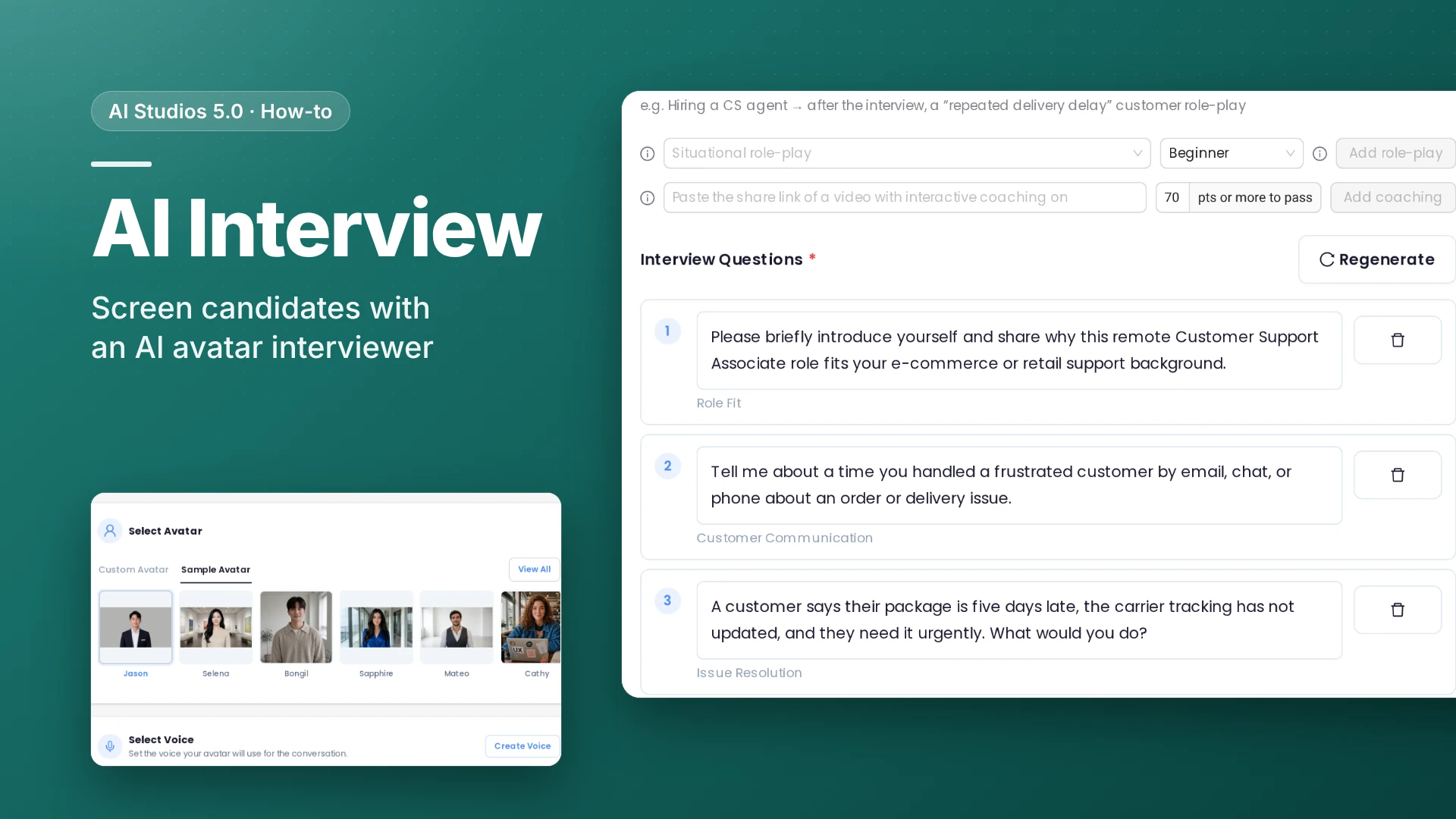
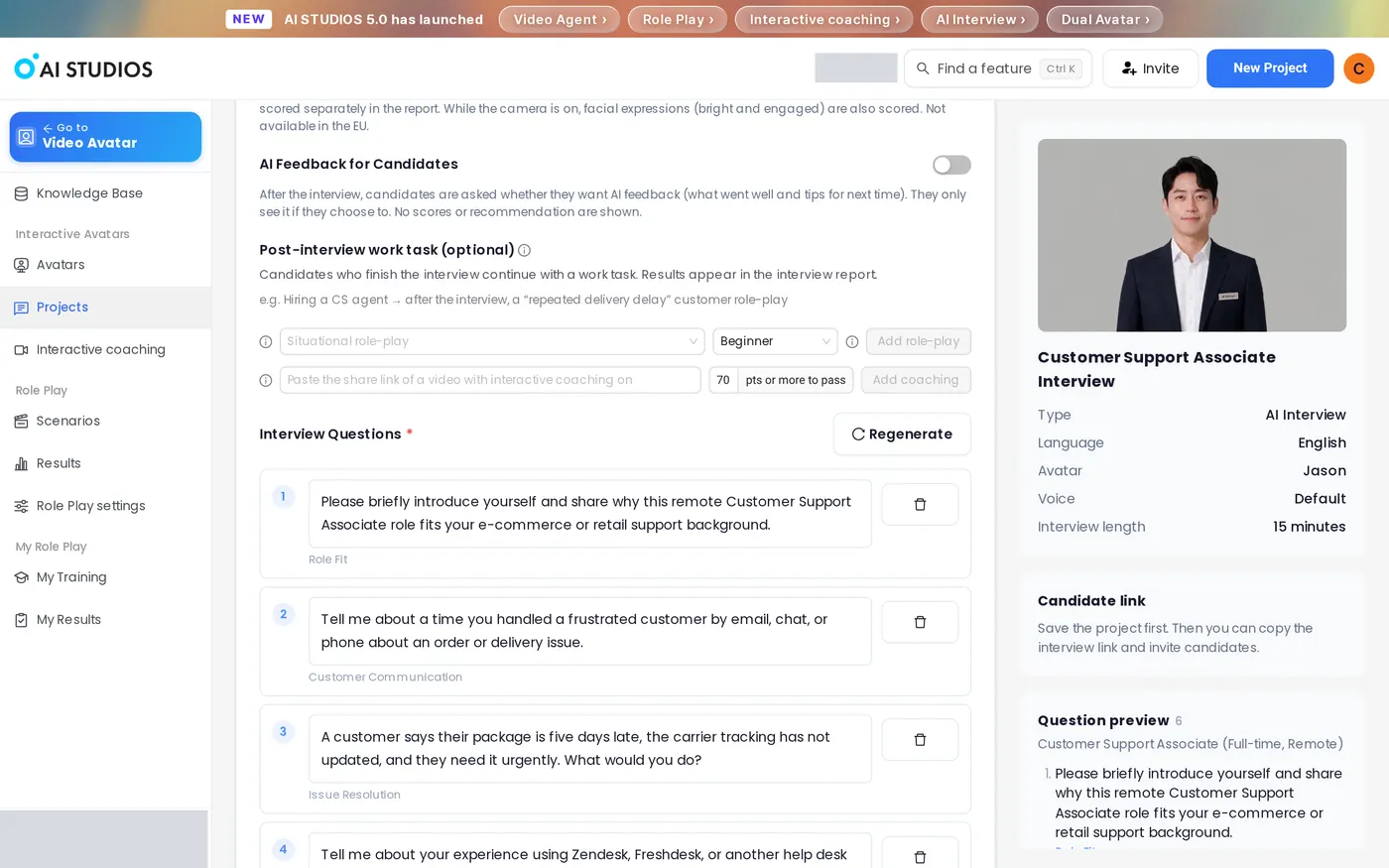
4. Review the generated questions. AI Studios summarizes the posting (responsibilities and requirements) and writes the Interview Questions. In our test, six questions appeared about 12 seconds after Use This Text, each tagged with a competency such as Role Fit, Customer Communication, or Issue Resolution. You can edit any question, delete it, use Add Question, or click Regenerate. The Question preview panel on the right shows the final list.
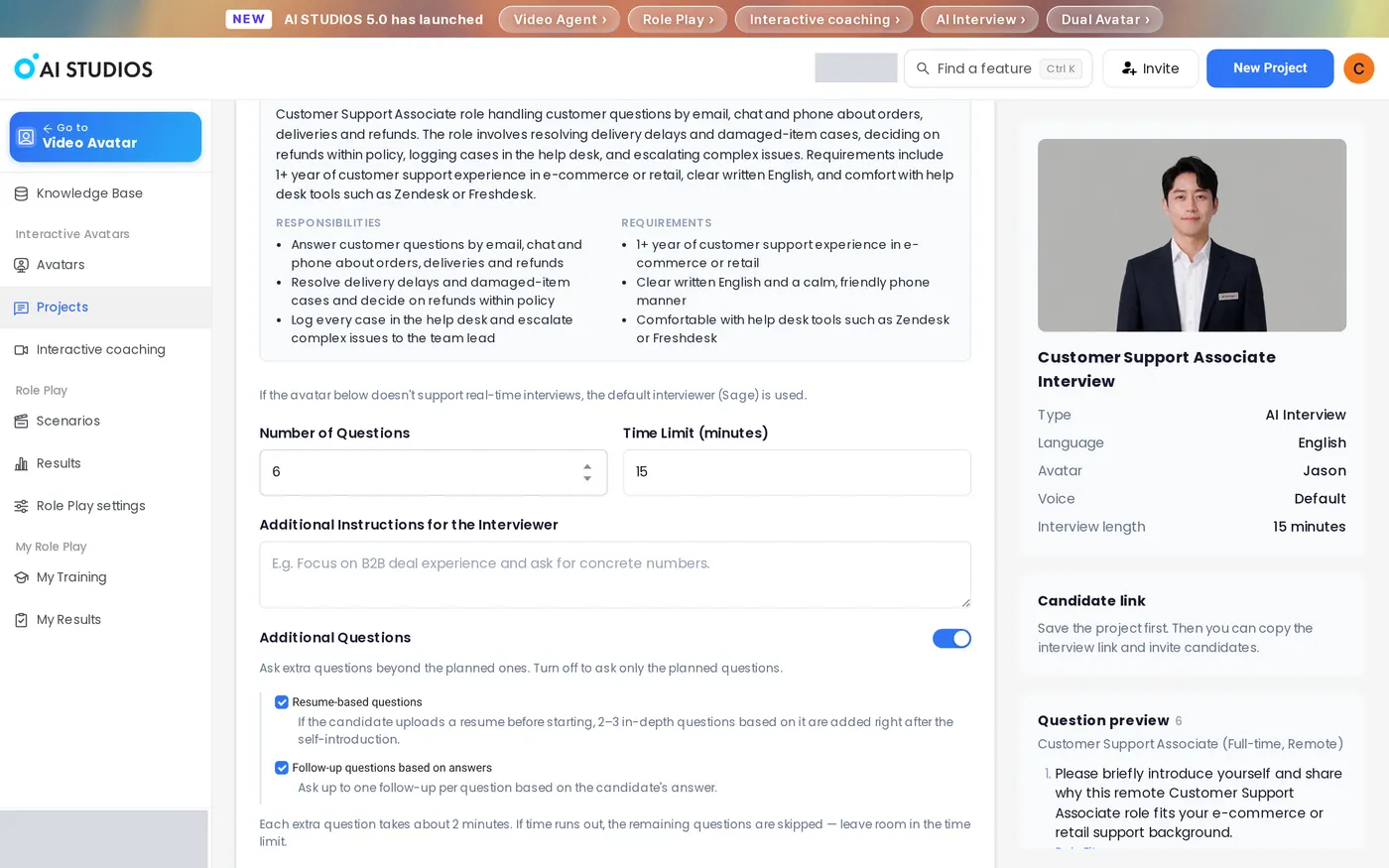
5. Set the interview length and interviewer behavior. Number of Questions (3 to 12) and Time Limit (minutes) (5 to 60) default to 6 and 15. Use Additional Instructions for the Interviewer to steer focus (for example, "Focus on B2B deal experience and ask for concrete numbers."). Four switches are on by default: Additional Questions, Resume-based questions, Follow-up questions based on answers (up to one per question), and Voice & Expression Evaluation. AI Feedback for Candidates is off by default.
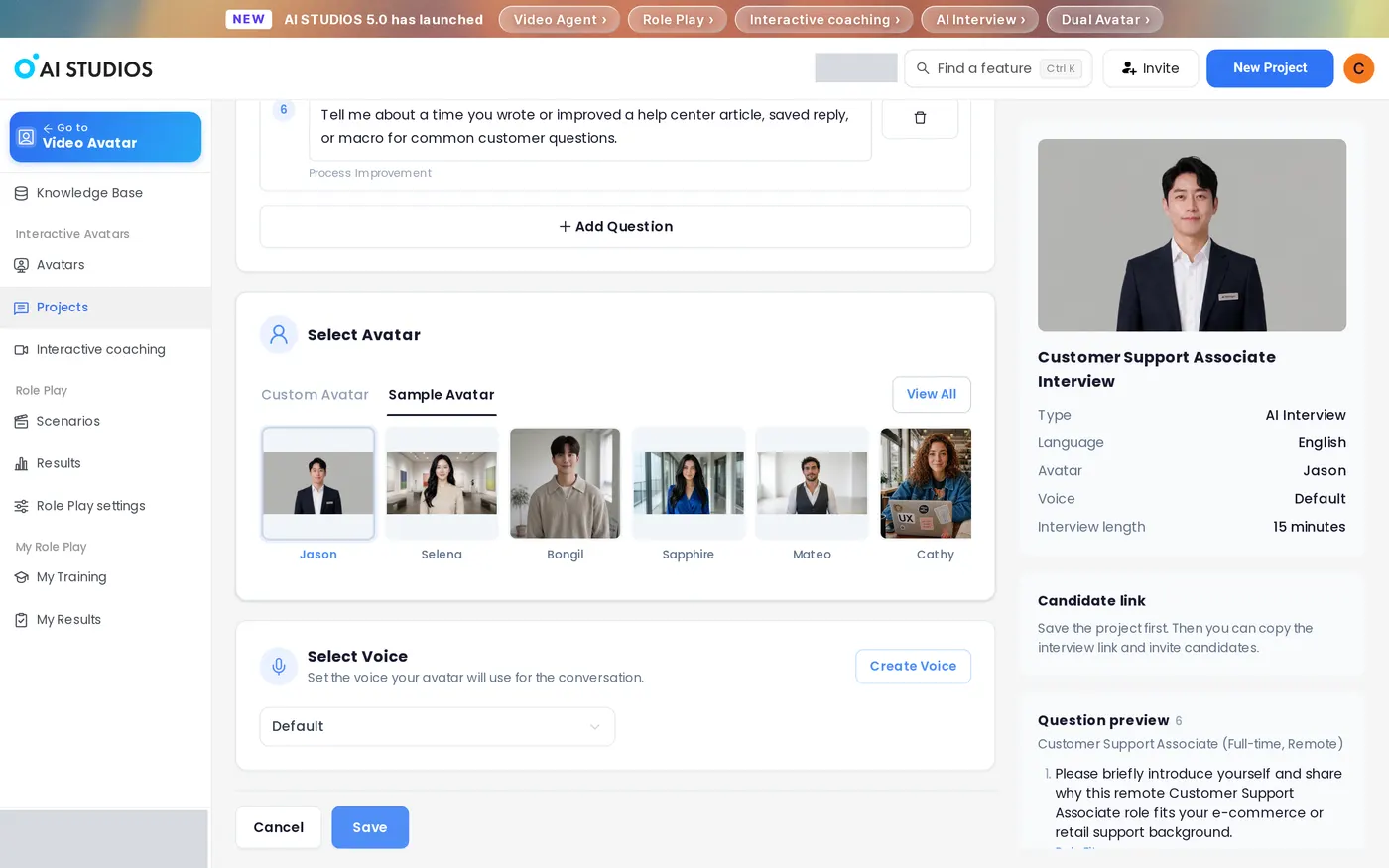
6. Select the avatar and voice, then save. Choose an interviewer in Select Avatar (Jason by default) and a voice in Select Voice. The screen notes: "If the avatar below doesn't support real-time interviews, the default interviewer (Sage) is used." The summary on the right shows the interview length. Click Save; a "Project saved." message appears and the project is added to Projects.
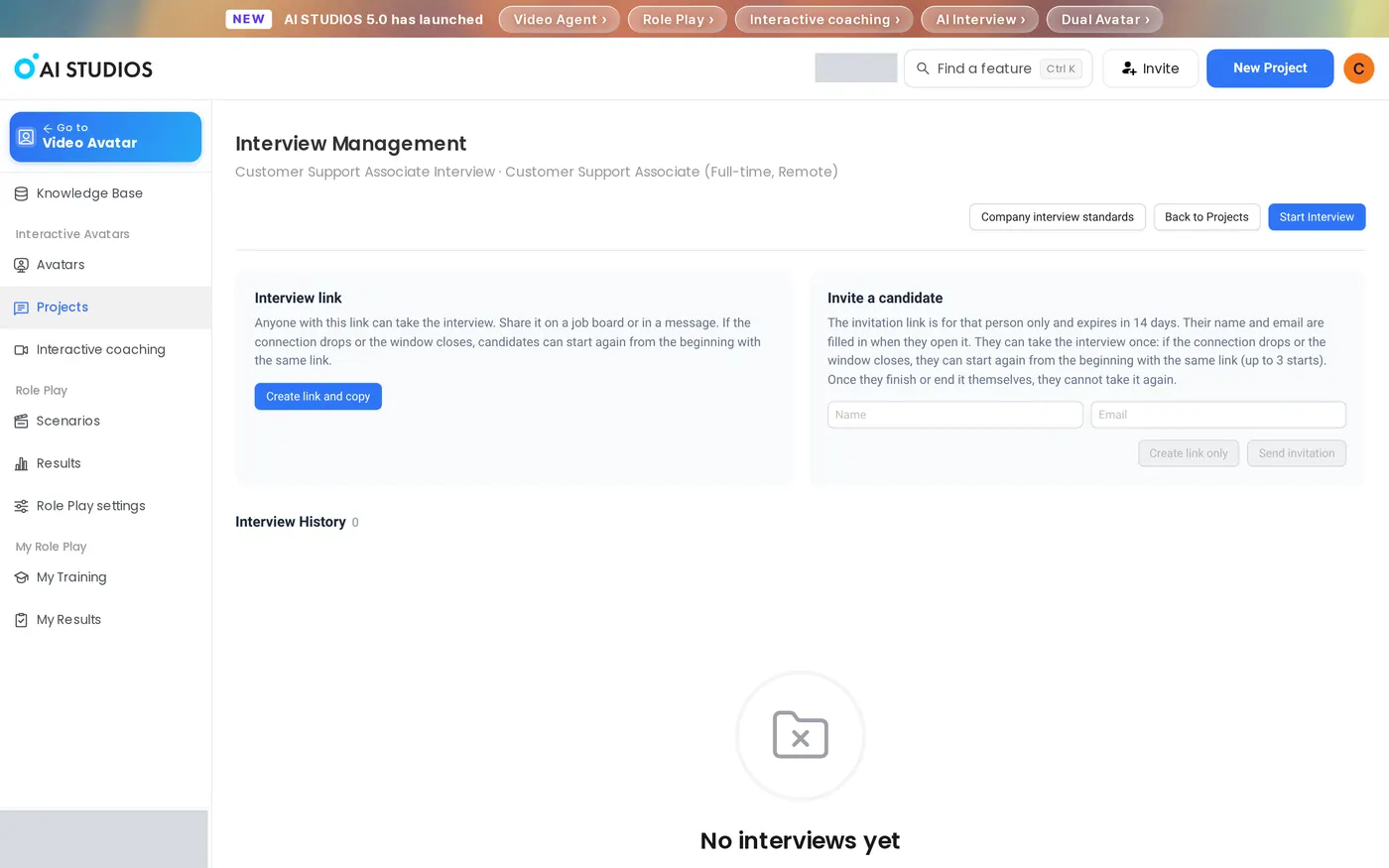
7. Share the interview link or invite a candidate. Open the project's Interview Management page. Under Interview link, click Create link and copy to get a link anyone can use; post it on a job board or send it in a message. Under Invite a candidate, enter a name and email, then click Create link only or Send invitation. A personal link expires in 14 days and lets them start again from the beginning if the connection drops, up to 3 starts in total. To see the candidate's page yourself, click Start Interview at the top; it opens in a new tab.
8. Review results in Interview History. The candidate's start page shows "6 questions · up to 15 min · camera and microphone required," a Name field, an optional Email, an optional resume upload (PDF, DOCX, or TXT up to 5 MB, which adds 2–3 questions), and consent checkboxes. Each finished session adds a row to Interview History on the Interview Management page. Click a row to open the report, set the Hiring team decision, and use Share results to send a read-only link to colleagues.
What does the AI interview report include?
To open a report, go to the project's Interview Management page and click a row in Interview History. Each row shows the Candidate, Date, Duration, Answered, Score, Recommendation, Hiring team decision, Status, and Recording. The report shows these sections in order:
- Overall Score and AI Recommendation. A score out of 100 and a recommendation such as Strongly Recommend, Recommend, or Hold, with a one-sentence summary. Four KPI cards follow: Strong Competencies, Competencies to Verify, Average per Question, and Questions Answered. The screen notes: "The AI recommendation is for reference only. The hiring team makes the final decision."
- Competencies and Competency Balance. Each competency gets a score out of 5; click a bar to see the evidence. A radar chart shows the balance.
- Score by Question. A score for each question, with a mark where a follow-up question was asked.
- Delivery. Voice Delivery, Speaking Pace, Pauses & Response Time, Filler Words, Average Answer Length, and Time to Start Answering.
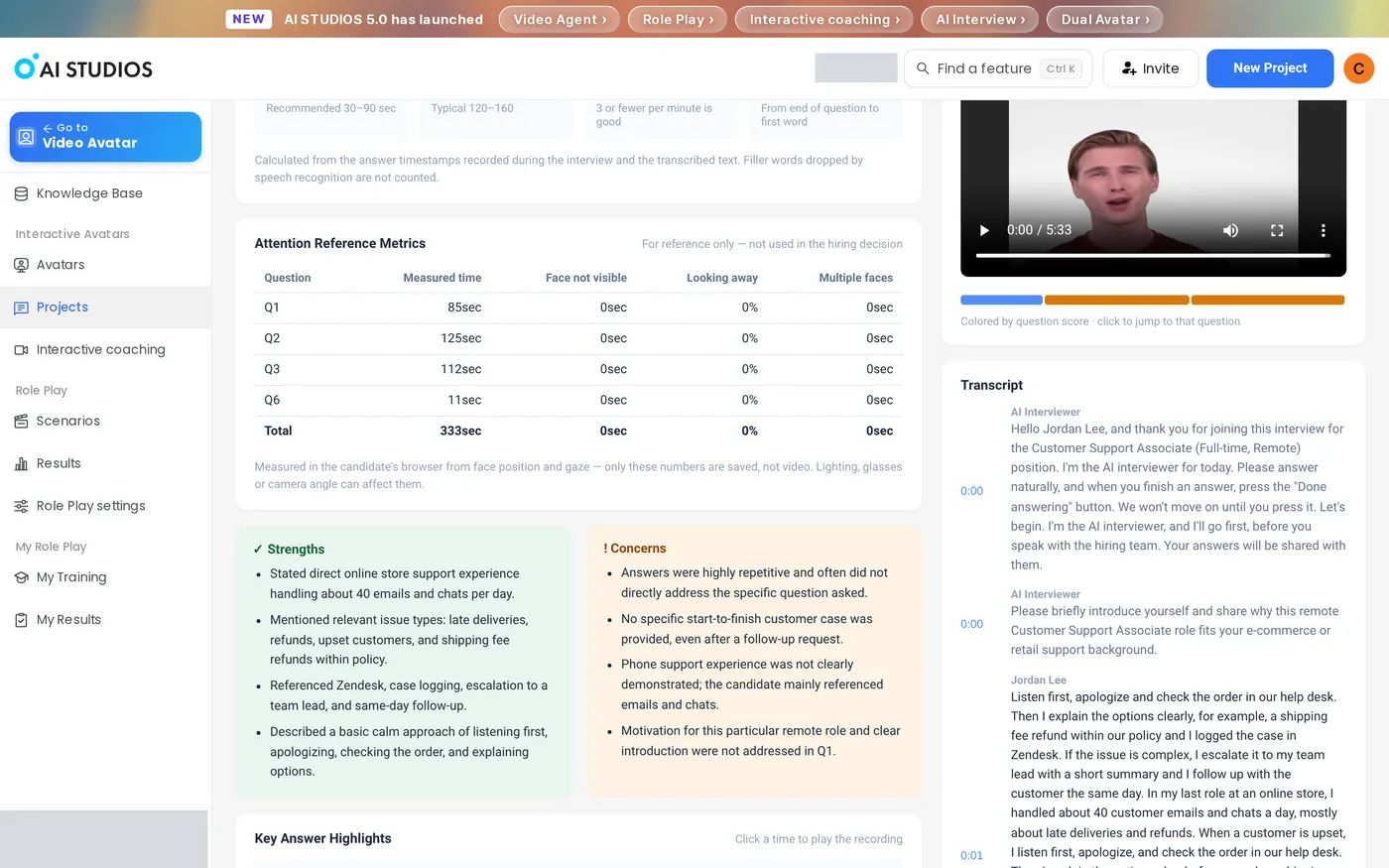
- Attention Reference Metrics. Face not visible, Looking away, and Multiple faces for each question. These are "for reference only — not used in the hiring decision."
- Strengths and Concerns. Bullet lists drawn from the answers.
- Key Answer Highlights. Click a time to play that moment in the recording.
- Answers by Question and Questions for the Next Interview. Expandable answers and suggested questions for the next round.
- Recording and Transcript. The video, colored by question score, and a full transcript.
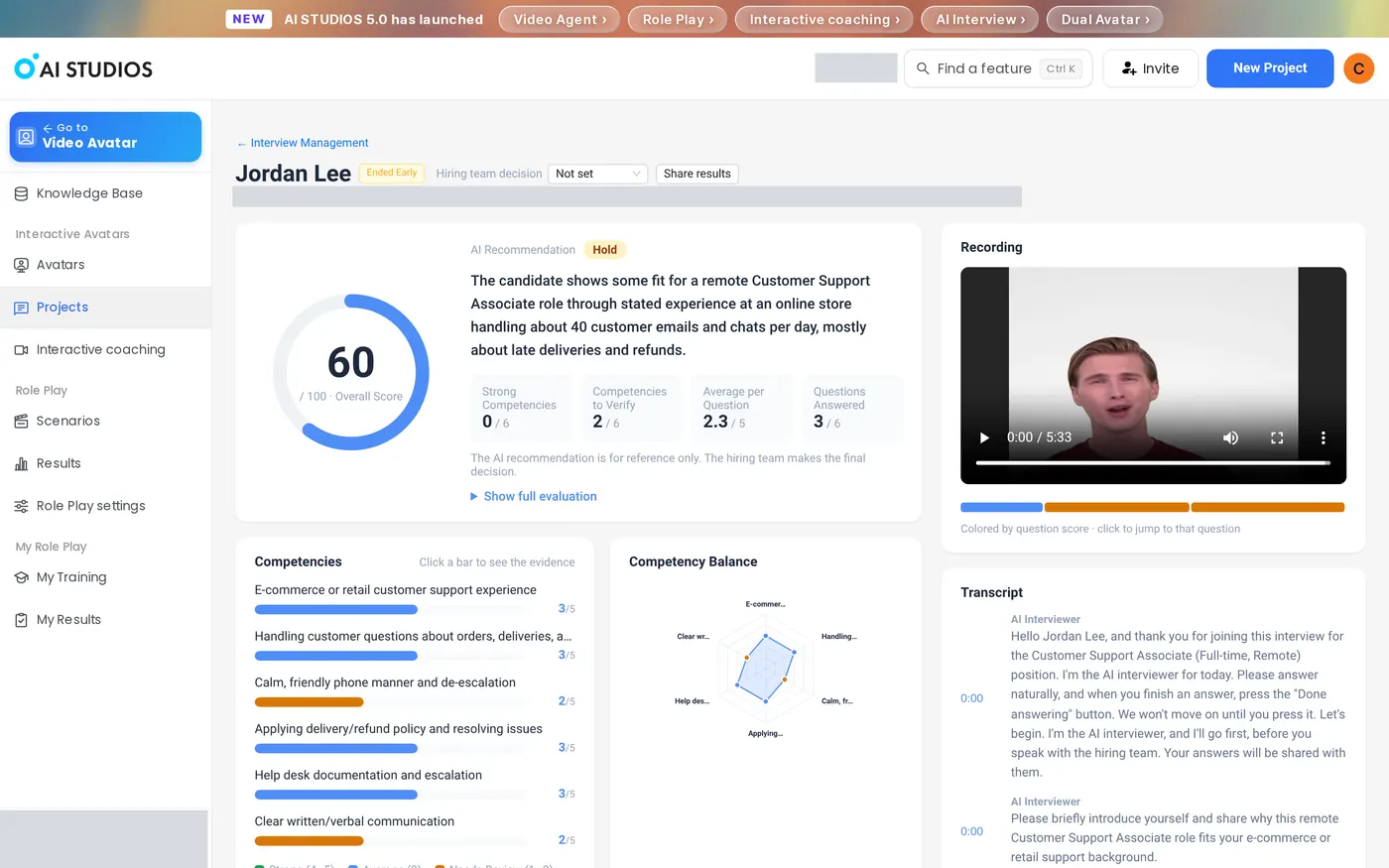
At the top of the report, set the Hiring team decision and use Share results to send a read-only link to colleagues.
How can you run better AI interviews?
Good questions come from a good posting, so the most useful thing you can do is give the AI a complete job description.
- Paste a full posting. Include responsibilities, requirements, and preferred qualifications. The questions and competency tags are built from this text.
- Edit before you save. Rewrite generated questions to match how your team actually screens.
- Use Additional Instructions for depth. One clear sentence, such as asking for concrete numbers, tells the interviewer what to probe for.
- Leave room for follow-ups. The settings screen warns: "Each extra question takes about 2 minutes. If time runs out, the remaining questions are skipped — leave room in the time limit." With the default settings (6 questions, 15 minutes), candidates are told to aim for about 2 minutes per answer, so check that the Time Limit covers every question.
- Choose the link type on purpose. Use the shared interview link for open job board postings and personal invitations for shortlisted candidates you want to track by name.
FAQ
What is AI Interview in AI Studios?
AI Studios' AI Interview is a recruiting feature in which an AI avatar interviewer asks candidates questions generated from your job posting, records their answers on camera, and writes a report for the hiring team.
Is AI Interview a practice tool for job seekers?
No. AI Interview is built for hiring teams that interview candidates. Candidates only use the interview page they open from your link.
Do candidates need to install anything?
No. Candidates take the interview in a web browser with a camera and microphone; no installation is needed.
Does the AI decide who gets hired?
No. The report shows an AI recommendation for reference only, and the hiring team makes the final decision using the Hiring team decision field.
How long is a candidate invitation link valid?
A personal invitation link works for one candidate, expires in 14 days, and lets them start again from the beginning if the connection drops, up to 3 starts in total. Once the candidate finishes or ends the interview, they cannot take it again.
How much does AI Interview cost?
AI Interview uses Interactive Avatar credits for the time the interview runs, paid by the workspace owner, and candidates take the interview for free. Check the pricing page for current plans.
Get started
Create your first AI interview from a job posting: learn more on the AI Interview feature page.
Related: Create an AI Interview (help center) · Taking an AI Interview (for candidates) · How Interactive Avatar pricing works · Pricing