TL;DR
AI Studios' Role Play is a feature for AI sales roleplay and customer conversation practice: you build a scenario from a one-line description, learners practice it by voice with an AI avatar customer, and each session ends in a scored coaching report. This guide walks through one complete loop: create a scenario, run a practice session, and read the report. For background on why roleplay training works, read our overview of AI Studios AI Roleplay for sales training first.
When should you use AI sales roleplay?
AI sales roleplay fits any situation where people need to rehearse a spoken conversation before they have it with a real customer. Three common cases:
- Sales call practice. Use the "First sales call (cold call)" example or the built-in "Sales person" sample so reps can practice an opening and a skeptical buyer before live calls.
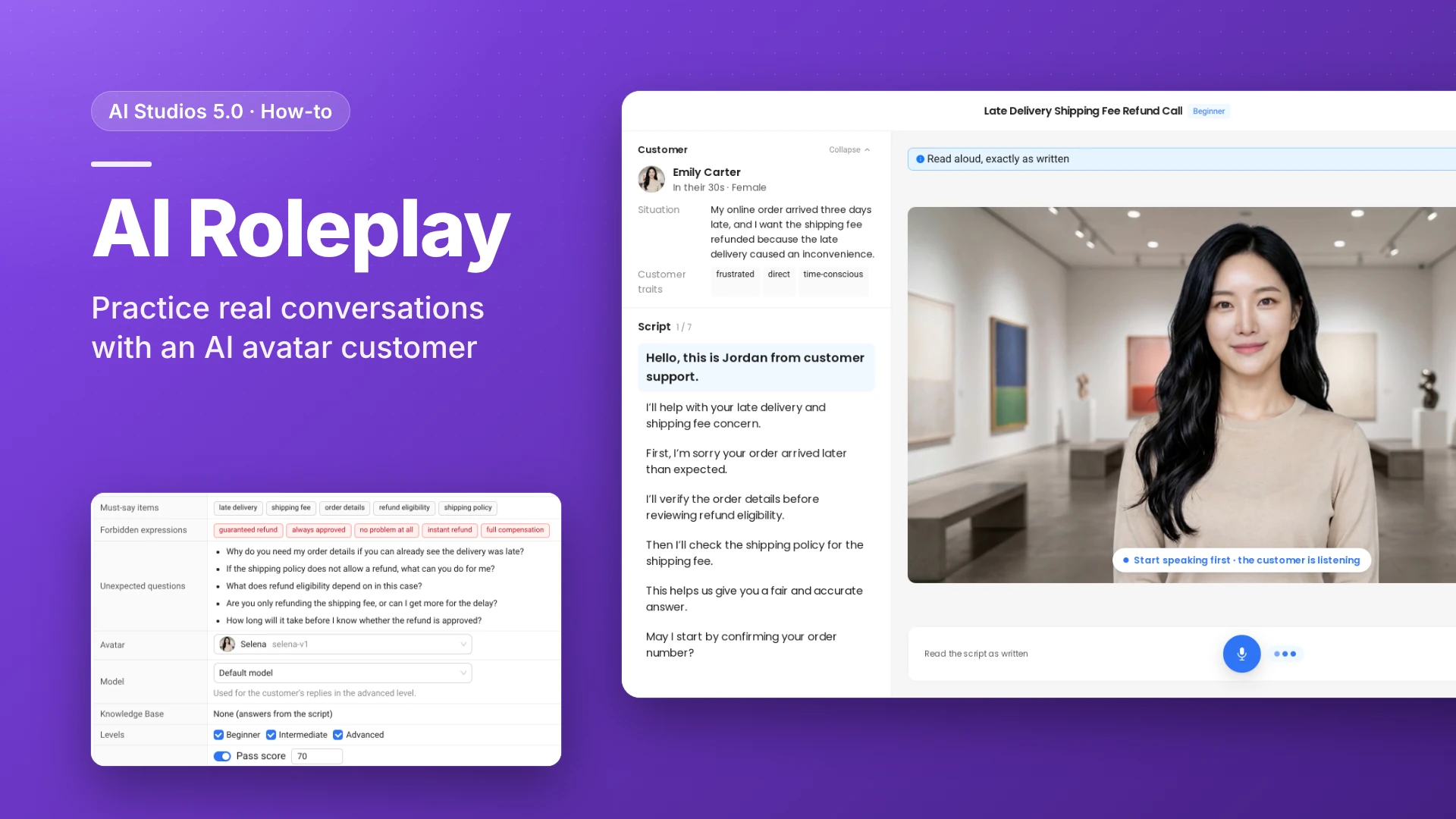
- Customer service training. Turn a frequent complaint, such as a late delivery, into a scenario with must-say items (order details, refund policy) and forbidden expressions ("guaranteed refund") so new agents practice the compliant answer.
- Policy-heavy conversations. For insurance renewals or public service desks, attach a Knowledge Base so the AI customer answers from your own documents instead of only the script.
How do you set up an AI sales roleplay scenario? (Step by step)
The steps below follow the English UI of AI Studios.
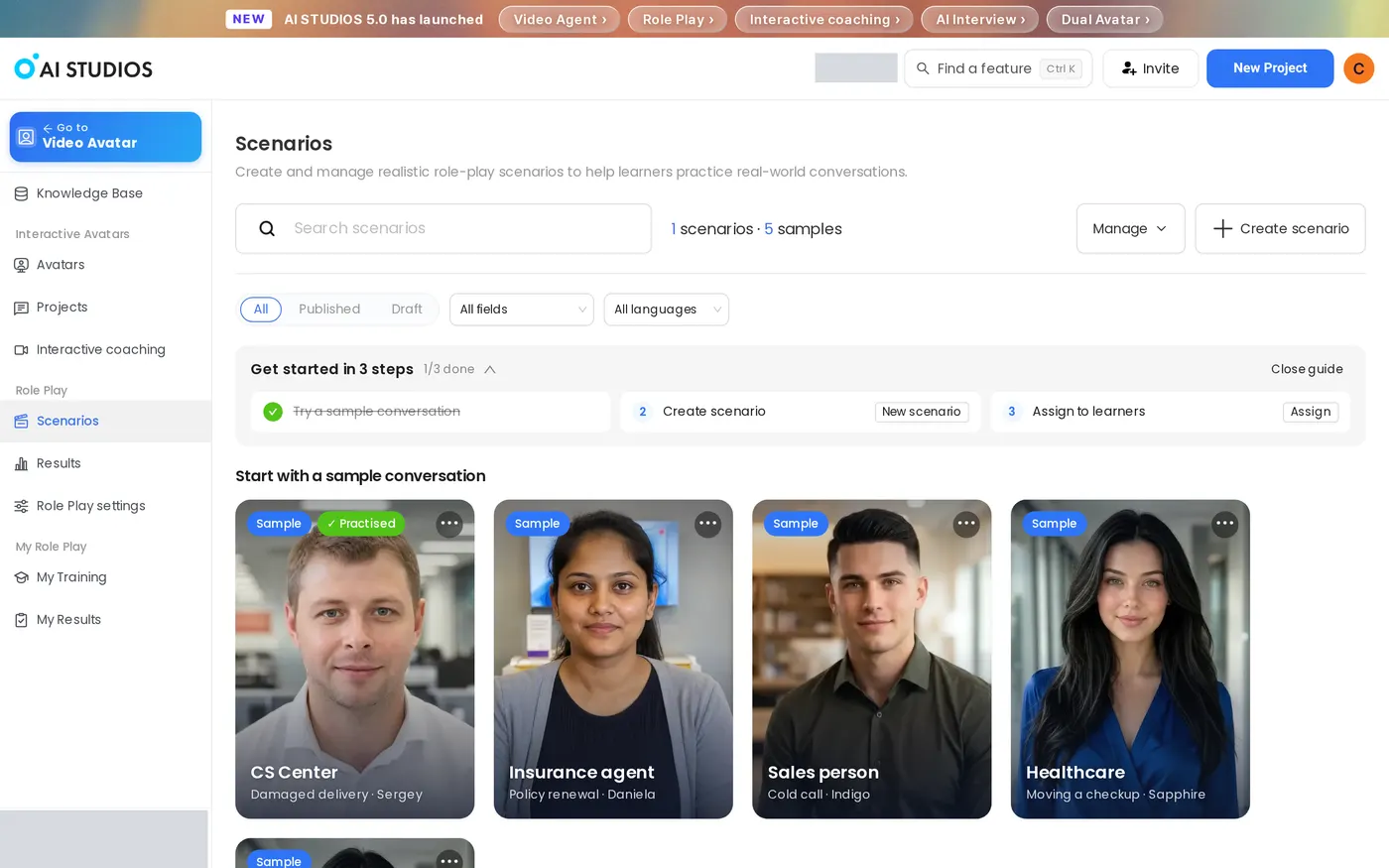
1. Open Scenarios. In the sidebar, go to Role Play > Scenarios. The Role Play card under Quick Start opens My Training (the learner view), so use the sidebar to build scenarios. Scenarios lists five samples under "Start with a sample conversation": CS Center, Insurance agent, Sales person, Healthcare, and Public service.
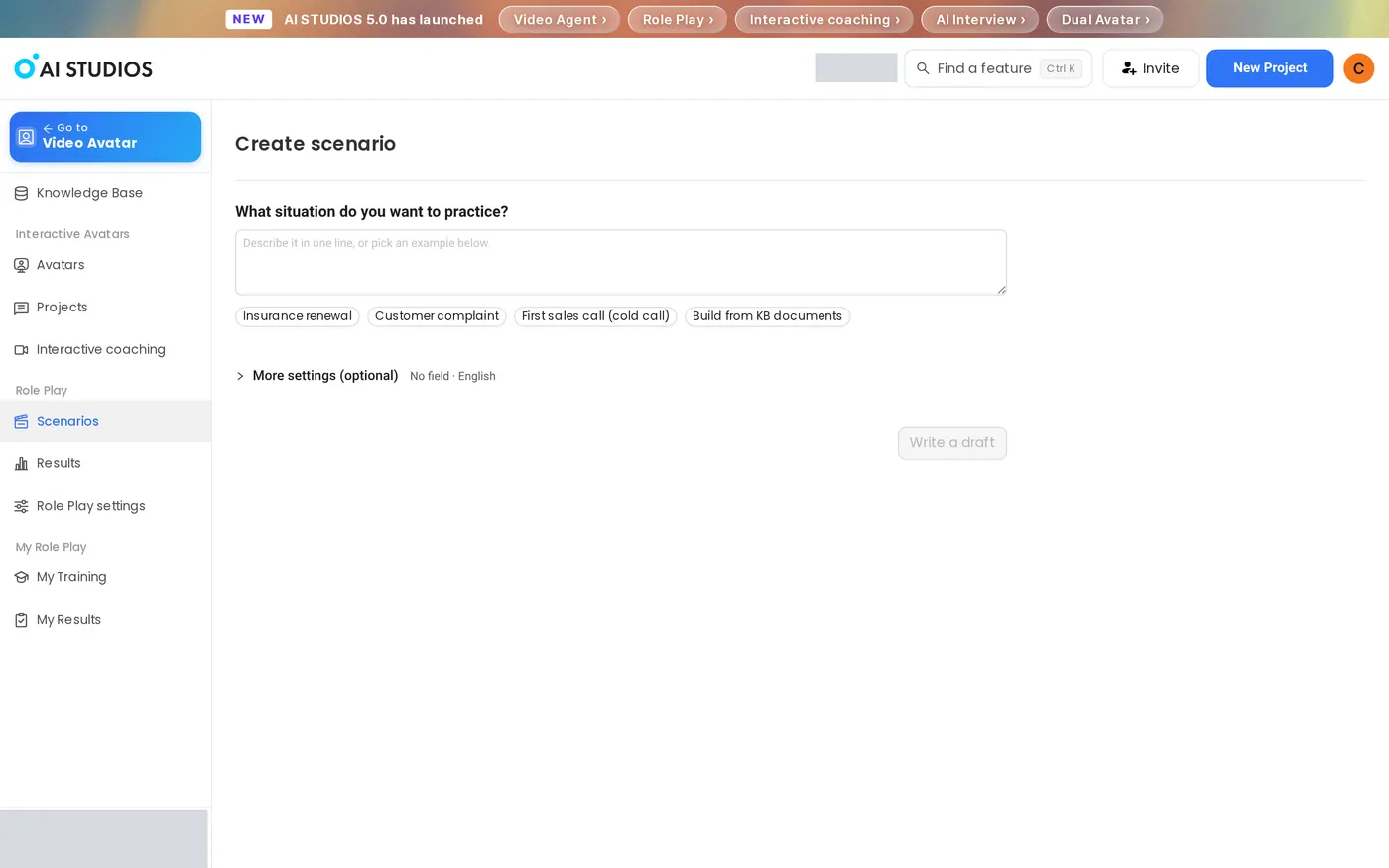
2. Describe the situation in one line. Click Create scenario. Under "What situation do you want to practice?", type one sentence, or pick an example chip: Insurance renewal, Customer complaint, First sales call (cold call), or Build from KB documents.
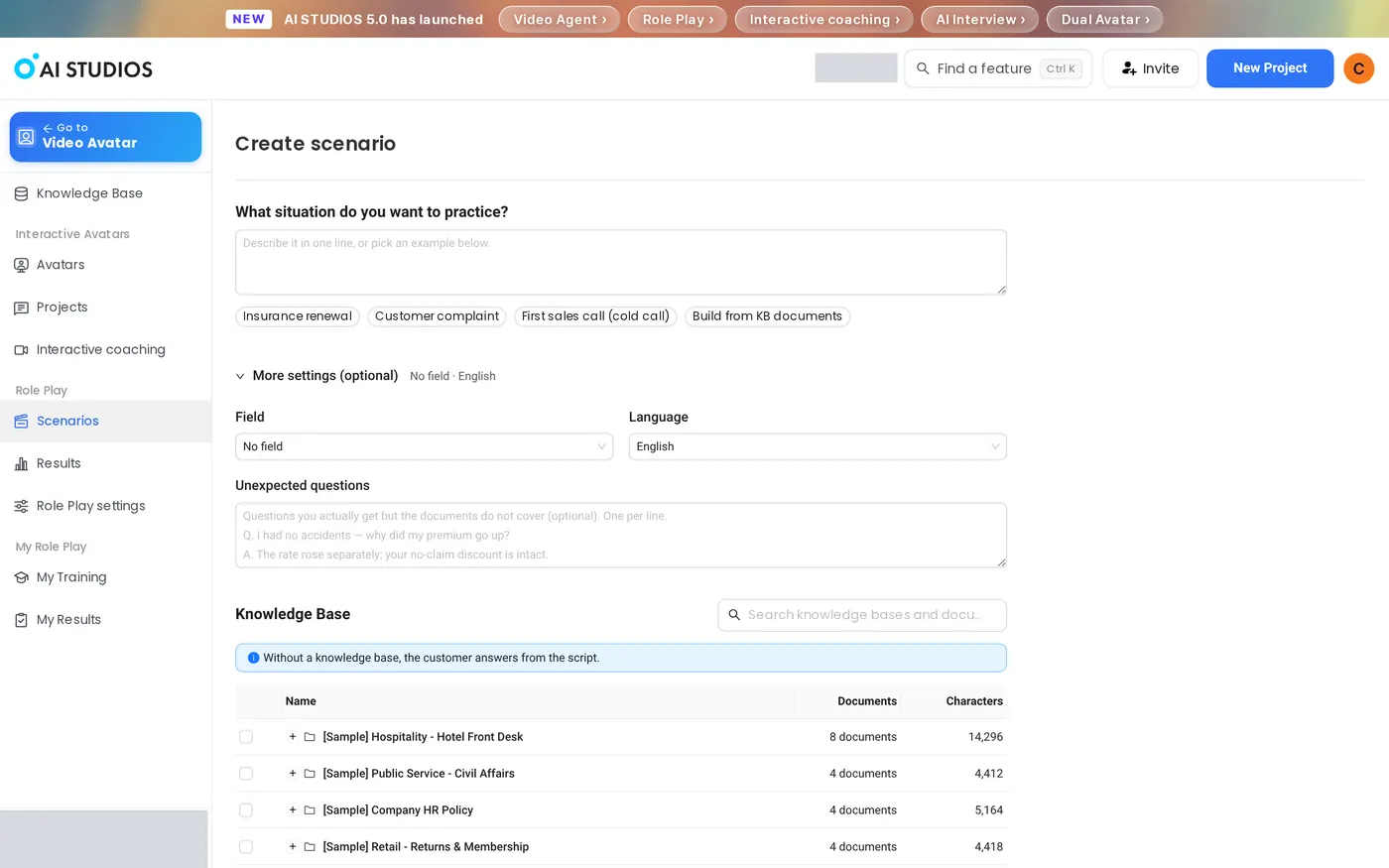
3. Adjust More settings (optional). Expand More settings (optional) to set the Field (for example Sales rep, Contact center, or Insurance agent), the Language, Unexpected questions (one per line, in Q./A. form), and a Knowledge Base. Without a knowledge base, the customer answers from the script.
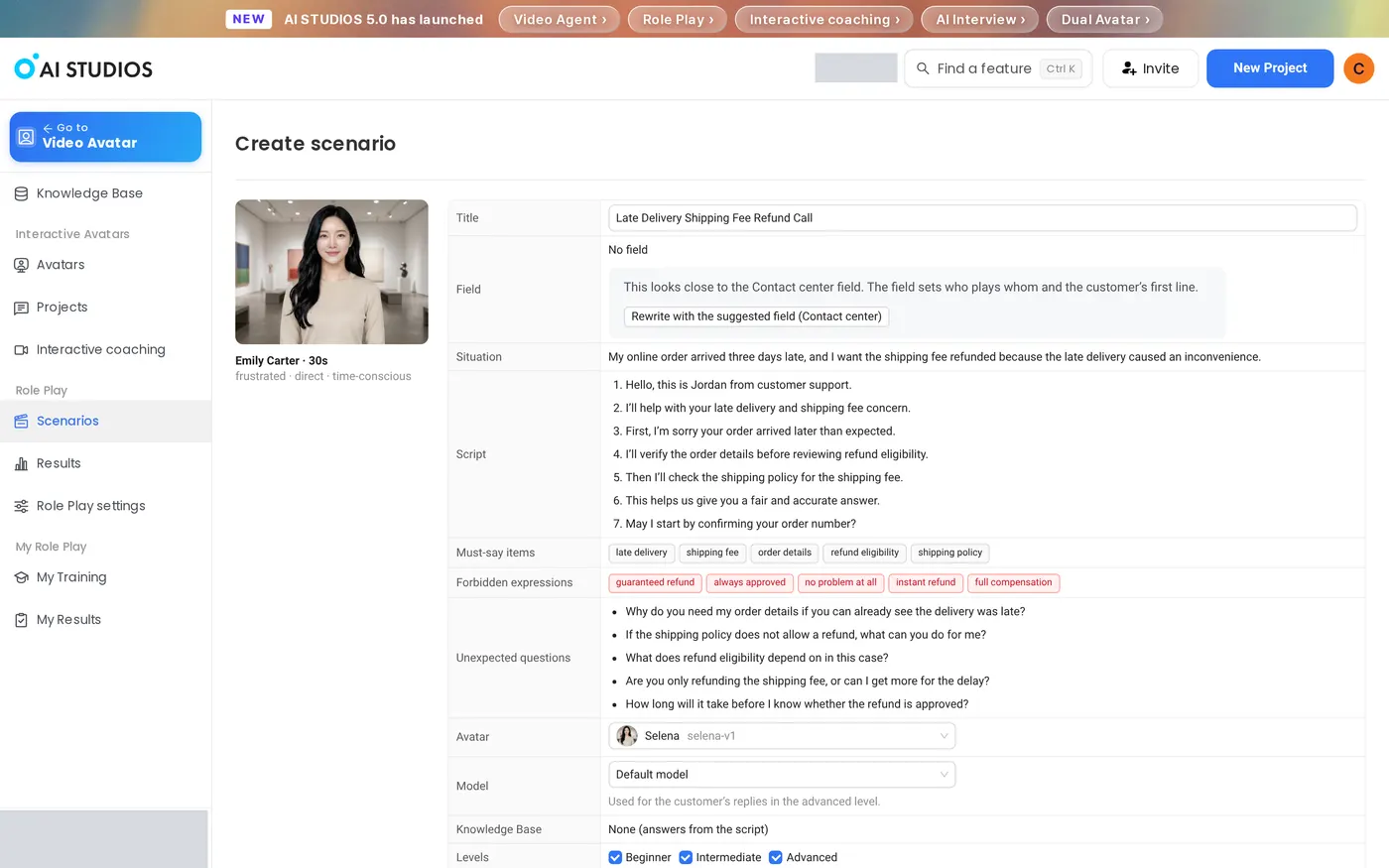
4. Write a draft and review it. Click Write a draft. In our test, the draft appeared in about 10 seconds. Review each row: customer card, Title (generated automatically and editable), Field, Situation, Script, Must-say items, Forbidden expressions, Unexpected questions, Avatar, and Model. If the draft fits another field better, a Rewrite with the suggested field button appears.
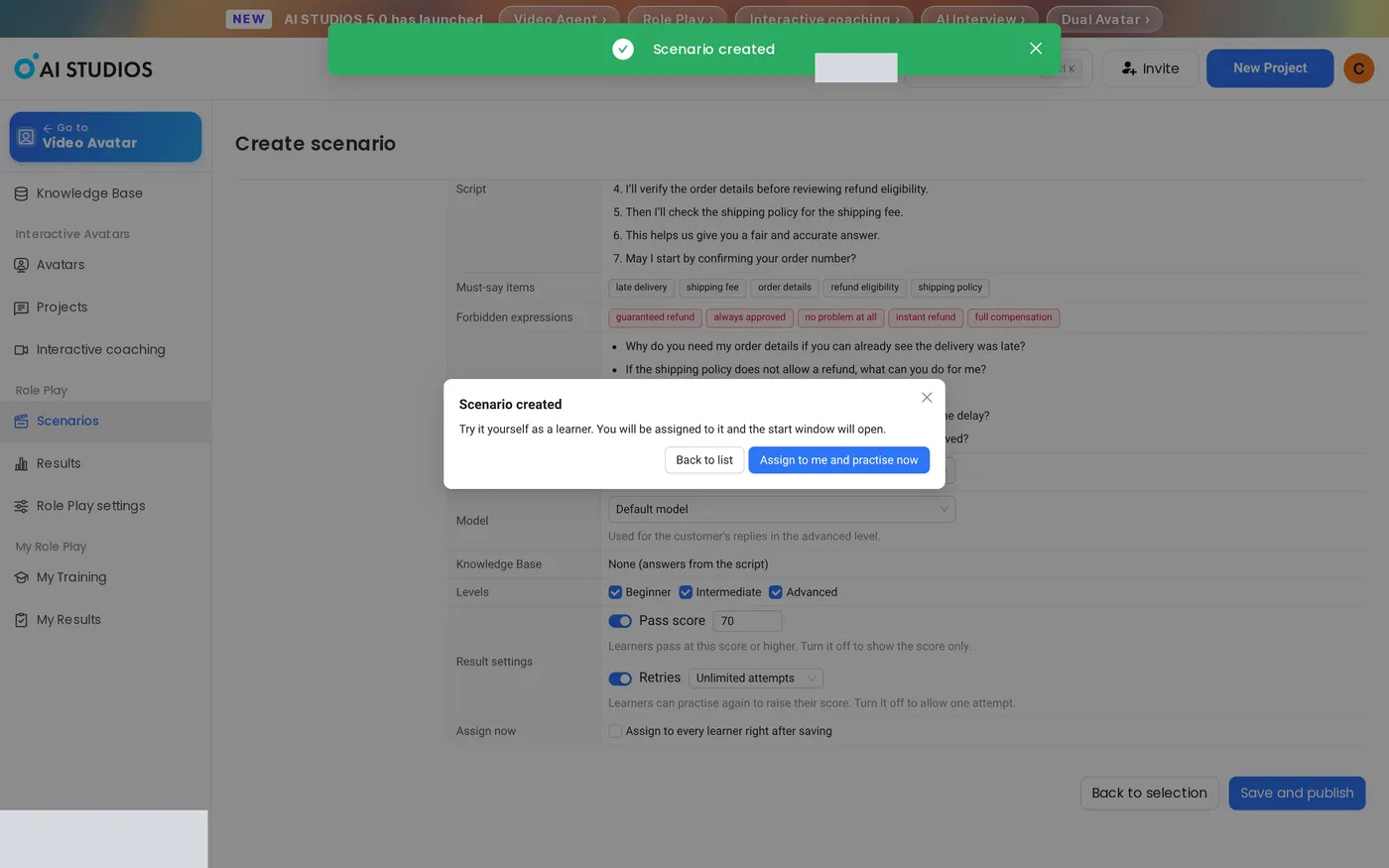
5. Set levels and results, then publish. Under Levels, keep or clear Beginner, Intermediate, and Advanced (all three are checked by default). Under Result settings, set the Pass score (default 70) and Retries (default Unlimited attempts). Optionally check "Assign to every learner right after saving." Click Save and publish. In the "Scenario created" dialog, go back to the list or assign the scenario to yourself and open the start window right away.
6. Review the start window. Before a session, the learner sees the Goal, About this customer, Success criteria, and Practice settings. At the Beginner level, the goal is "Read the script aloud accurately from start to finish." Click Change to adjust Language, Customer gender, and Customer age group, then click Done.
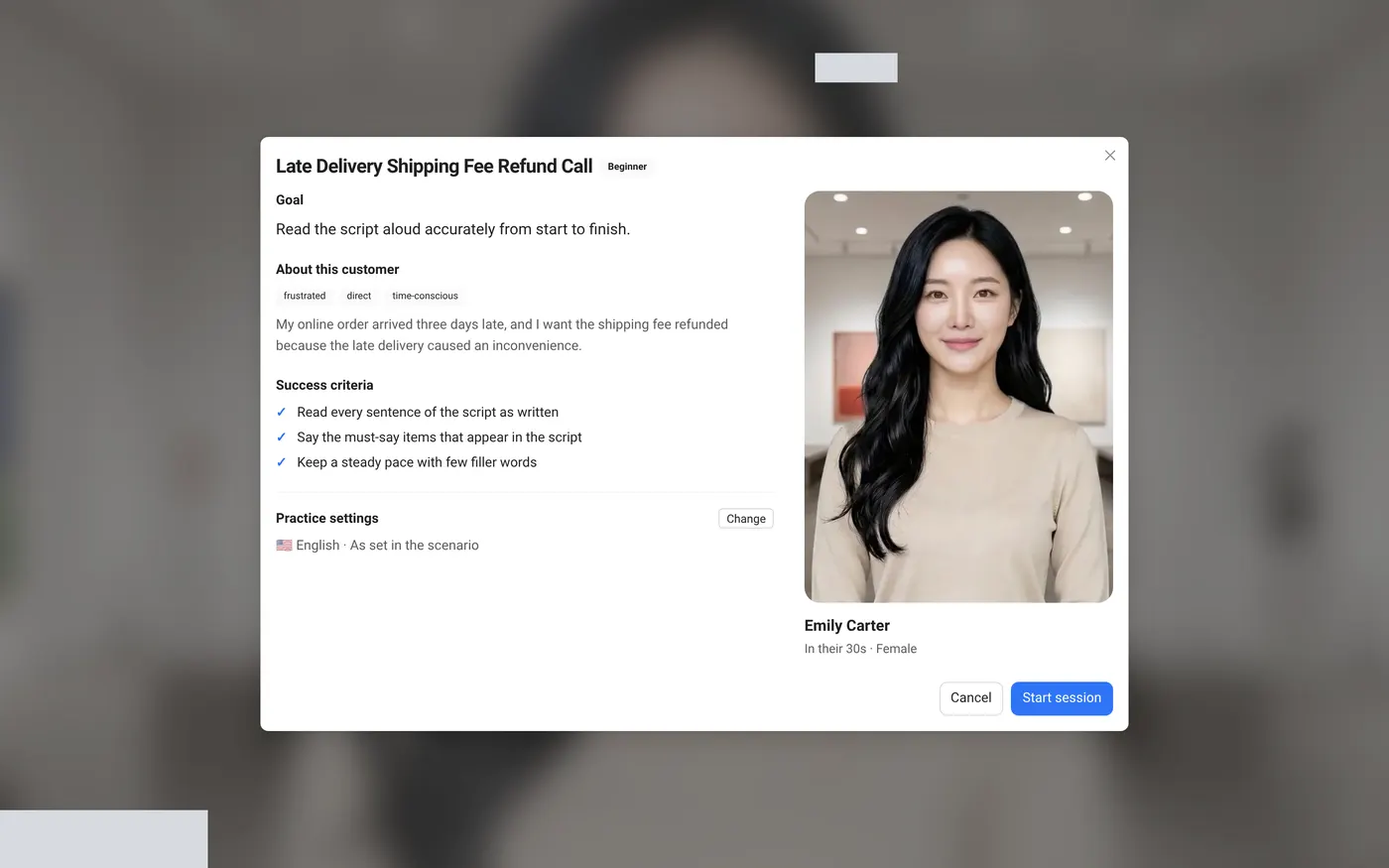
7. Start the session and speak. Click Start session and allow microphone access. At the Beginner level, the learner speaks first: the screen shows "Start speaking first · the customer is listening" and walks through the script line by line (for example, Script 1 / 7). At the Advanced level, the learner holds a free conversation with the AI customer instead.

8. End practice and read the coaching report. Click End practice. The report opens immediately, with no confirmation step. At the top, you see the level, the date, the session length, and whether the learner passed. The report shows a score out of 100 with feedback on each part of the conversation. The Coaching block lists What went well, What to improve, and a Next step. In our Beginner test, the learner read the whole script and passed, so the Next step suggested moving up with a Practice at Intermediate button. Below that, What you said shows the learner's words as text.

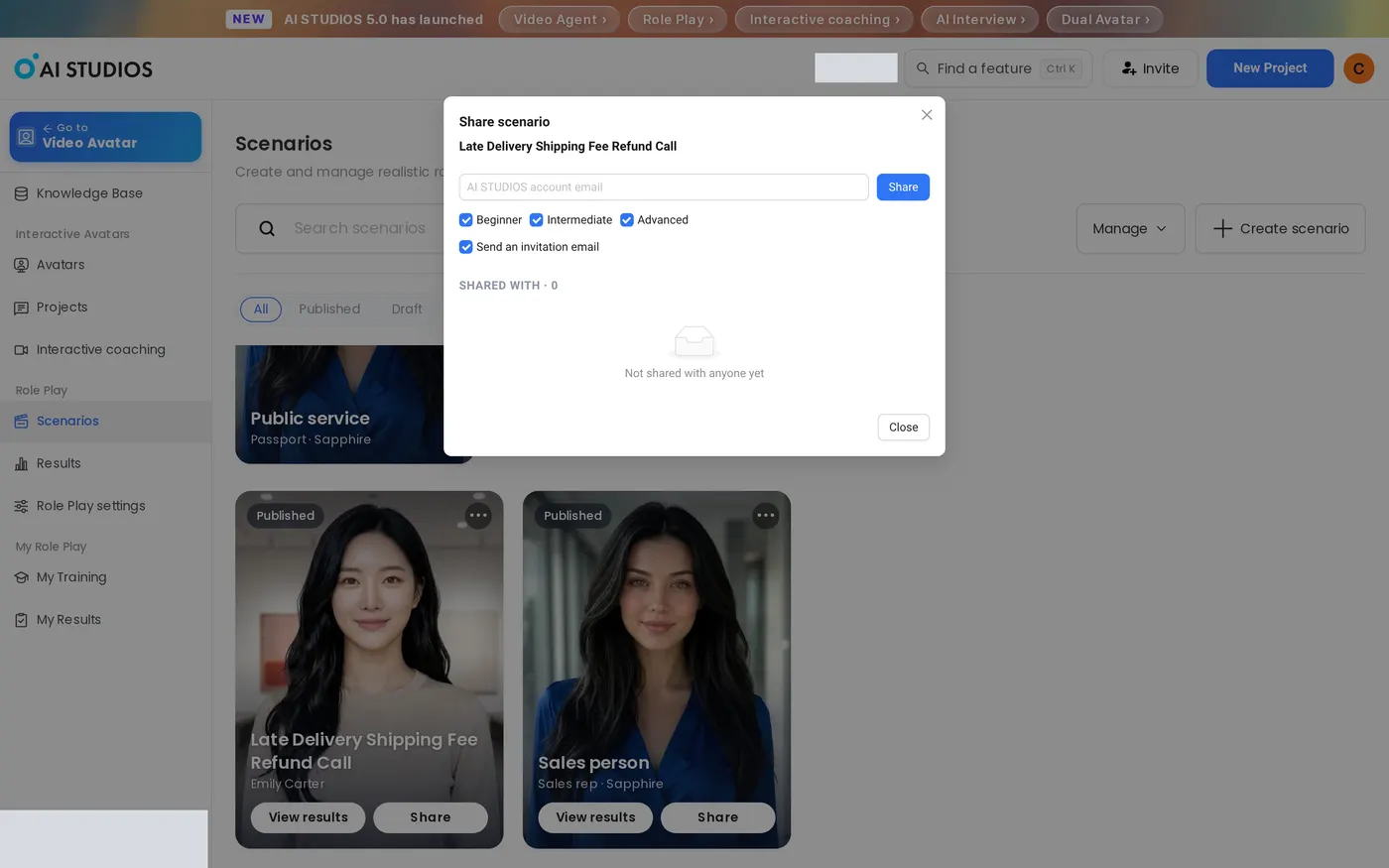
9. Share with learners and track results. On your scenario card, click Share, enter the learner's email, choose levels, and keep "Send an invitation email" checked. You can also assign scenarios in bulk from Manage > Assign. Track progress under Results, which shows Completion, Average score, Practice sessions, and Active learners.
How can you get better results from AI roleplay training?
- Try a sample before you build. Click Practice this sample on a sample card to see the start window, live session, and report from the learner's side.
- Keep must-say items short and concrete. The report counts how many must-say items a learner delivers, so phrases like "refund policy" work better than long sentences.
- Add the questions customers actually ask. Use Unexpected questions for real objections your documents don't cover. The Model setting is used for the customer's replies at the Advanced level.
- Match the level to the learner. Beginner means reading the script aloud, Intermediate means working from key keywords, and Advanced means a free conversation with the AI customer.
- Use the report's Next step. Retries default to unlimited, so learners can work on "What to improve" and practice again right away, or move up a level.
- Automate assignment. In Role Play settings, turn on Auto-assign on join so new members get selected scenarios and levels when they join.
AI sales roleplay FAQ
What is AI Roleplay, and how is it different from Interactive Coaching?
AI Studios' Role Play is a feature where learners practice a conversation from a scenario by voice with an AI avatar customer and get a scored coaching report. Interactive Coaching instead checks what viewers learned from a video.
Do learners speak or type during practice?
Learners practice by speaking. The session screen has a microphone button, and we did not see a text input box.
Which languages can learners practice in?
Learners can practice in Korean, English, Vietnamese, Japanese, Chinese, and Spanish. Sample scenarios are available in Korean and English.
Does AI roleplay training work on a phone?
No. AI Roleplay works on PC and tablet, and phones are not supported.
Does practice use credits?
Yes. Practice sessions at every level, including Beginner, use Interactive Avatar credits based on the minutes practiced. Before you roll out training, check your credit balance.
How many trainings are included on the Free plan?
The Free plan has limits on scenarios and practice sessions. Team plans and above are meant for full rollouts. See Pricing for current plan details.
Get started
Open AI Studios and run your first sample conversation from the AI Roleplay training page. For admin details, see the Role Play help article.