Artificial intelligence has changed how we create holiday greetings.
In the past, making a Christmas card meant using design tools, buying templates, or spending hours editing photos.
Now, you can make AI Christmas cards in minutes — even if you’ve never designed anything before.
If you’re new to AI, don’t worry.
This beginner-friendly guide will show you what AI Christmas cards are, why people love them, and how to make your first one step by step in 2025.
🎅What Is an AI Christmas Card?
An AI Christmas card is a holiday greeting created by AI from a text prompt or a photo.
You describe what you want (for example: “a cozy family card with snow and warm lights”),
and the AI generates a card image in a chosen style like photoreal, illustration, or cartoon.
With modern tools, you can also turn that card into a short motion greeting video, which is great for social sharing.
In simple terms:
AI Christmas cards help you create beautiful holiday cards fast, without design skills.
🎁Why People Use AI to Make Christmas Cards
AI makes card creation easier for everyone — families, creators, and businesses.
Key benefits in 2025:
- No design skills needed
Just type a prompt or upload a photo. - Fast results
Make a card in minutes, not hours. - Personal for anyone
Create versions for family, friends, or clients. - Many styles instantly
Classic, cute, funny, minimalist, luxury. - Easy to share or print
Download for print or post online right away.
Example:
A small business owner makes AI-generated Christmas cards for clients and shares them as short video greetings on social.
🎄How AI Christmas Card Generators Work (Beginner-Friendly)
Most AI card tools use diffusion models trained on millions of images.
When you type a prompt, the model learns:
- what objects look like (trees, lights, snow, people)
- how styles work (photoreal, watercolor, cartoon)
- how to match your text to a holiday layout
The basic process:
- You enter a prompt (or upload a photo).
- AI understands your style and scene.
- The card image is generated.
- You refine it by changing your prompt.
- (Optional) You animate it into a motion card.
The clearer your prompt, the better your card looks.
🎄How to Make an AI Christmas Card (Step-by-Step)
If you’re a beginner, follow this simple roadmap 👇
Step 1 — Choose a Style and Aspect Ratio in AI Images
Start in AI Images at the top of AI Studios.
On the left, open Style and pick a look that fits your card — Realistic, Claymation, Crochet, Anime, Watercolor, Kids Drawing, and more. These presets help you get a clean holiday vibe fast.
Next, set the right Aspect Ratio for your goal:
- Print / card layouts: 1:1, 3:4, or 4:5
- Social sharing (Stories/Reels/TikTok): 9:16
- Wide banners / horizontal formats: 16:9 or 21:9
Choosing ratio first keeps your text and layout neat later.
Step 2 — Write a Simple Prompt (or Upload a Photo)
Prompts are short descriptions that tell the AI what to create.
Use easy, clear language. If you want a personalized card, upload a face or family photo in the image upload area before generating.
Prompt example 1 (text-only card image):
A charming 3D digital illustration of two decorated gingerbread cookie characters, a man with a red scarf and a bear with a red bowtie, held by hands with red nail polish. They are in a festive, snowy outdoor market setting with Christmas trees adorned with red ornaments and a building in the background. Snowflakes are falling, and the scene is illuminated by warm, golden hour light. The style is friendly, clean, and stylized.

Prompt example 2 (using an uploaded face/photo):
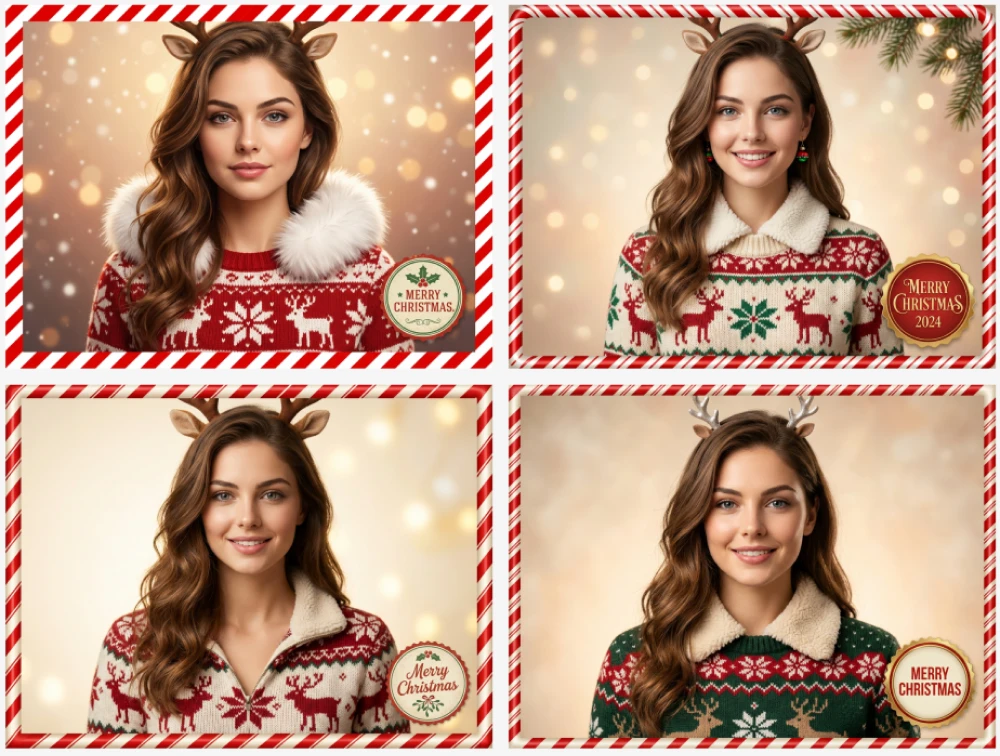
Using the uploaded face, create a warm and festive Christmas card portrait.
Keep the person’s facial features, skin texture, hairstyle, and identity exactly the same.
Use the reference image’s background style: a clean, warm-toned backdrop with a soft gradient
and a cozy winter atmosphere. Apply a decorative Christmas border similar to the reference,
with red-and-white candy cane stripes framing the entire image.
Dress the person naturally in Christmas-themed clothing inspired by the reference:
a winter sweater or coat with holiday patterns, soft fleece, or festive textures.
You may add subtle Christmas accessories such as a fluffy collar, small ornaments,
or reindeer antlers if they match the composition naturally.
Place a vintage-style Christmas badge or label near the bottom corner,
similar in style to the reference image, without covering the face.
Ensure the final result looks like a polished, classic holiday greeting card—
bright, cheerful, warm, festive, and professional.
Now click Generate to create your first card image.
Step 3 — Generate 2–3 Variations
AI works best when you try a few quick versions.
Press Generate again after small edits to your prompt, like:
- “more snow”
- “softer warm lighting”
- “cute cartoon style”
- “minimal layout with clean space for text”
Pick your favorite result — this is usually faster than trying to get a perfect first draft.
Step 4 — (Optional) Turn It into a Motion Card in AI Videos
Once your image card looks good, switch to the AI Videos tab at the top.
You can animate your card into a short holiday motion greeting (about 6–8 seconds works best).
Simple motion prompt add-on:
“Animate for 7 seconds. Light snow falling, tree lights softly twinkling, slow zoom-in. Keep all text stable and readable.”
Step 5 — Add Voice, Lip-Sync, Captions, and Holiday Music
Finish everything inside AI Studios.
With one prompt, you can generate a short greeting, add a natural AI voice, auto lip-sync, and place cozy Christmas background music.
Keep your greeting short (1–2 sentences) for the most natural result.
Then export as:
- a print-ready image
- a short holiday video greeting
- social-ready sizes (vertical, square, horizontal)
Your AI Christmas card is ready to share or print.
✨Beginner Tips for Better AI Christmas Cards
Here are simple ways to get better results:
Tip 1: Be specific
- Instead of “Christmas card,” try
“warm family Christmas card with snow and golden lights.”
Tip 2: Ask for readable text
- Add: “text clear and readable, no distortion.”
Tip 3: Choose your layout
- For printing, say: “vertical 5x7 card layout.”
- For social, say: “vertical video card.”
Tip 4: Keep motion subtle
- Gentle snow or soft light twinkles look best.
Tip 5: Short messages feel more natural
- One or two sentences is perfect.
🧩Best Prompt Formula (Copy This)
Use this order for clean results:
Subject → Style → Details → Text → Layout → Motion (optional)
Example:
Family by a tree → photoreal → warm lights + snowfall → “Merry Christmas 2025” → vertical print layout → gentle snow motion
🎁Final Thoughts
AI Christmas cards are the easiest way to make holiday greetings in 2025.
They’re fast, personal, and beginner-friendly.
All you need is a simple prompt — and a little experimenting.
If you want to go beyond a still card, try making a short motion greeting too.
It’s a small upgrade that makes your holiday message feel much more special.
🎅Why Make Your AI Christmas Cards with AI Studios' Free Santa Video Generator
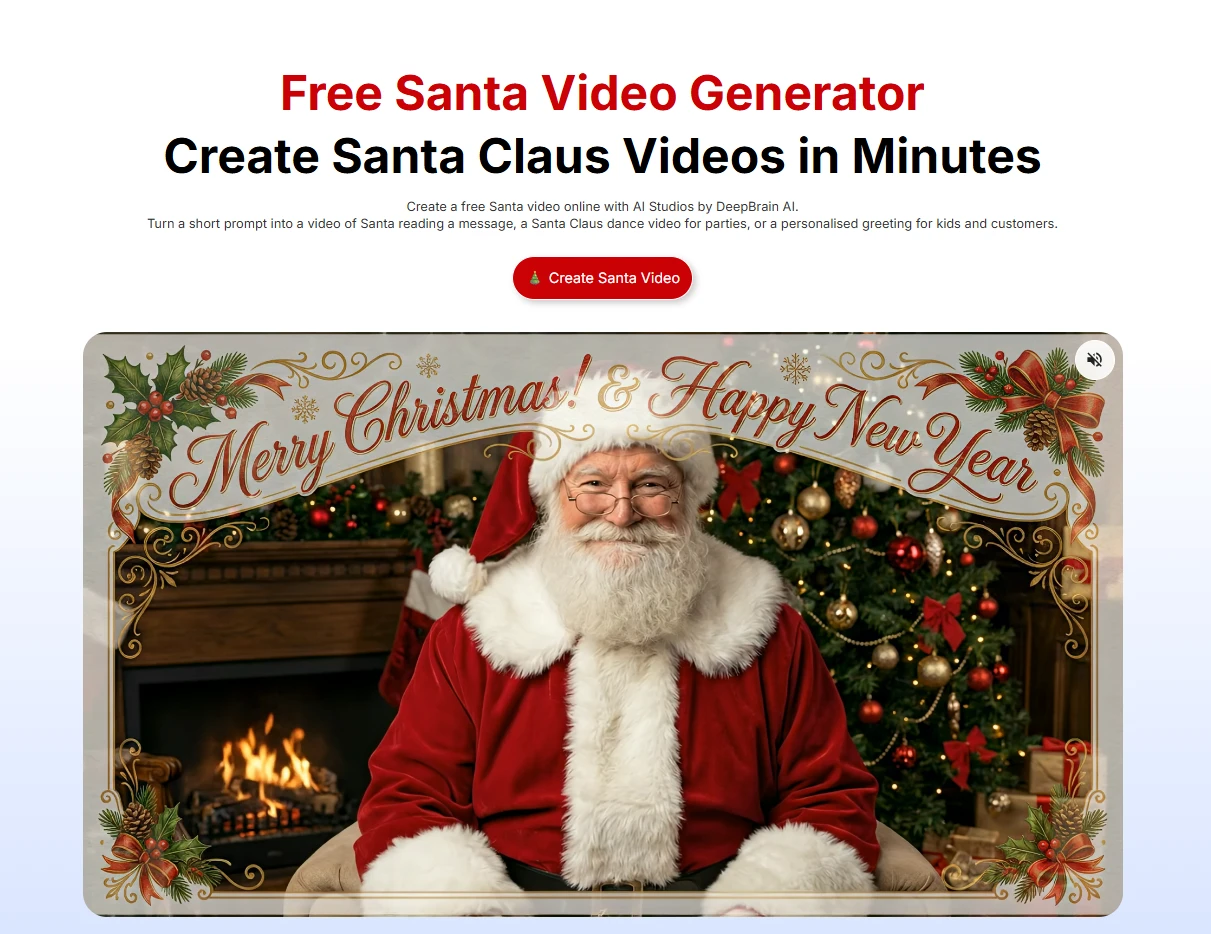
AI Studios makes the whole process simple because everything is in one place.
You don’t need extra apps or design tools.
With AI Studios, you can:
- create a card image in AI Images
- choose a style and aspect ratio in seconds
- animate it in AI Videos
- add AI voice, auto lip-sync, captions, and Christmas music from one prompt
So your holiday card goes from idea → image → motion greeting in minutes.
Ready to try it?
👉 Create your first AI Christmas card with AI Studios today.
❄️FAQs
Do I need design experience to make AI Christmas cards?
No. Just go to AI Images, pick a style and aspect ratio, type a simple prompt, and click Generate — AI Studios does the design for you.
Can I use family photos?
Yes. Upload a family or face photo in AI Images, then prompt the AI to keep faces natural and add a warm, festive Christmas look.
Can I print my AI Christmas card?
Yes. Export a high-resolution image and print it in a standard size like 5×7. For best results, choose a print-friendly aspect ratio first.
Can I make multiple versions for different people?
Absolutely. Make small prompt changes and hit Generate again to create different styles for family, friends, or clients in minutes.